The current problem is that we don't know which Gleap user is accessing the help center and therefore the widget does not reflect their existing sessions and audience rules are not working if you set them up in the help center.
Good news — in most cases, Gleap handles this for you automatically! If the user is already logged in as a Gleap contact in another project on the same base domain, Gleap will automatically detect and use the existing cookie to identify the user in the help center. No additional setup is required on your end.
If cookies are disabled (e.g. via Gleap.setUseCookies(false)), you can set up a manual login redirect as a fallback.
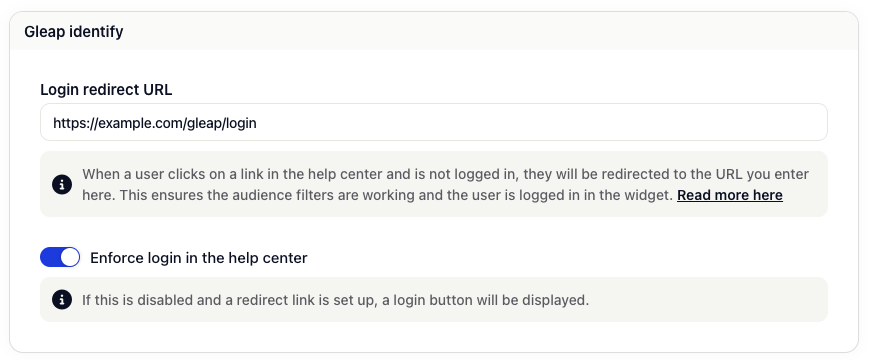
In the help center settings, set up a "Login redirect URL" in the "Gleap identify" section.
When a user accesses your help center and is not already identified, Gleap will redirect them to your provided URL.
Once redirected to your website, you can check if the user is already identified using Gleap.getIdentity():
// Check if user is already identified in Gleap
const userData = Gleap.getIdentity();

// If a userId exists the user is not a Guest
if (userData?.userId) {
  const gleapId = userData.gleapId;
  const gleapHash = userData.gleapHash;

  // Redirect back from url param redirect
  const urlParams = new URLSearchParams(window.location.search);
  const redirectUrl = urlParams.get('redirect');
  if (redirectUrl) {
    window.location.href = `${redirectUrl}?gleapId=${gleapId}&gleapHash=${gleapHash}`;
  }
} else {
  // Show login form
}
If the user is not already identified in Gleap, display a login form. After login, call Gleap.identify() and execute the logic above to redirect the user back to the help center.
If you don't want to enforce login, disable the "Enforce login in the help center" toggle. This will display a login button at the top of the help center, allowing users to choose whether to log in or not.