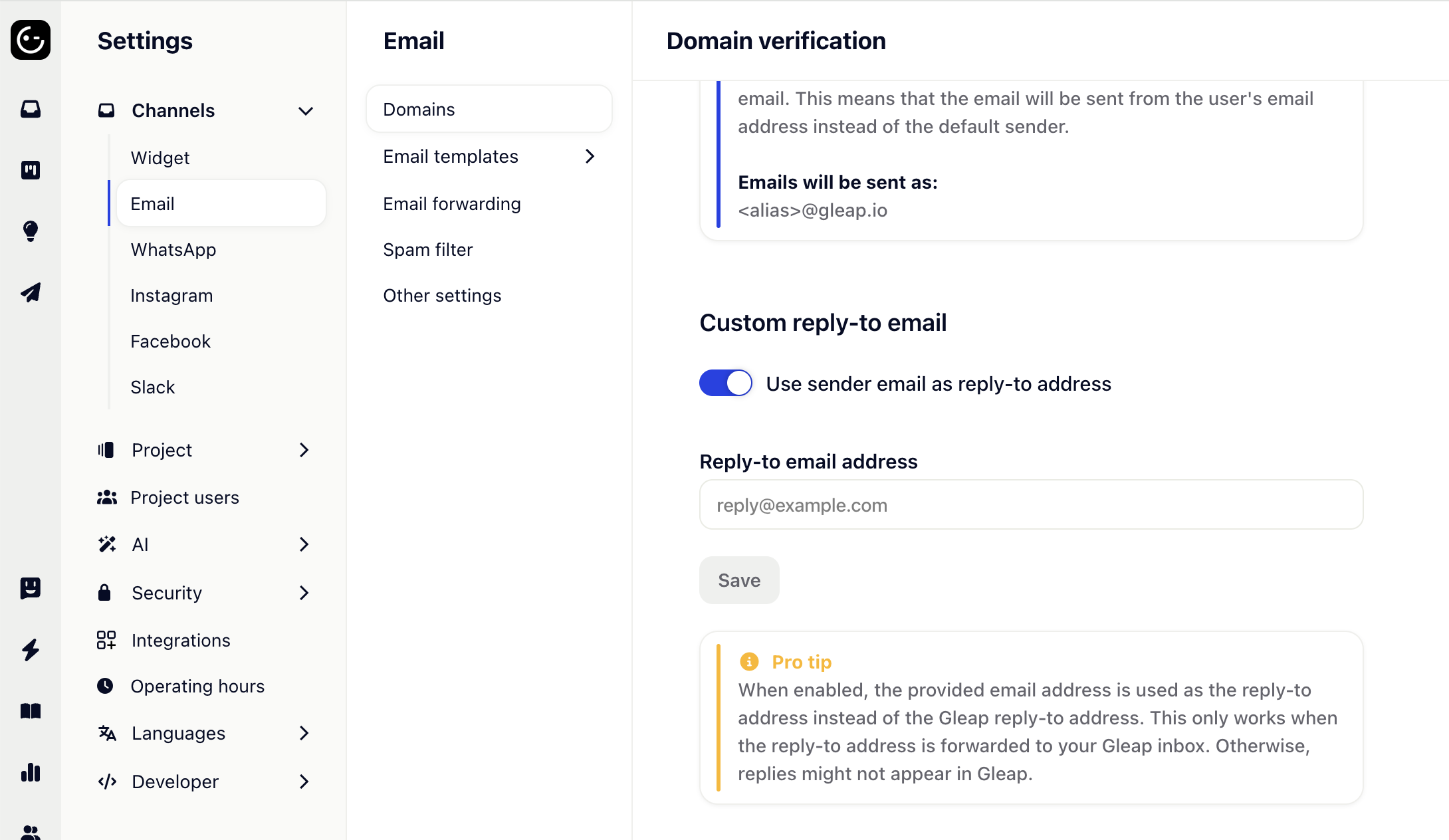
Custom Reply-To Email Address
When you send emails to customers through Gleap, a default Gleap reply-to address is automatically assigned. This guarantees that any customer replies land back in your inbox. However, it also means customers may notice a mismatch between the sender address and the reply-to address, which can look unprofessional.
To solve this, you can set a custom reply-to address by going to Settings → Email → Domains → Custom reply-to email.
Once enabled, you'll be asked to enter your preferred reply-to address — typically one that matches your sender address.
For example, if you set [email protected] as your custom reply-to, you'll also need to forward all incoming mail from [email protected] to your personal Gleap inbox address (found under Settings → Email → Email forwarding). This way, customer replies continue to appear in your Gleap inbox even with the custom reply-to in place.