Changelogs are public announcements about changes, updates, and new features in your product. They appear in your feedback portal where users can read, react, and comment on them — and users can subscribe to get notified via email whenever you publish a new one.
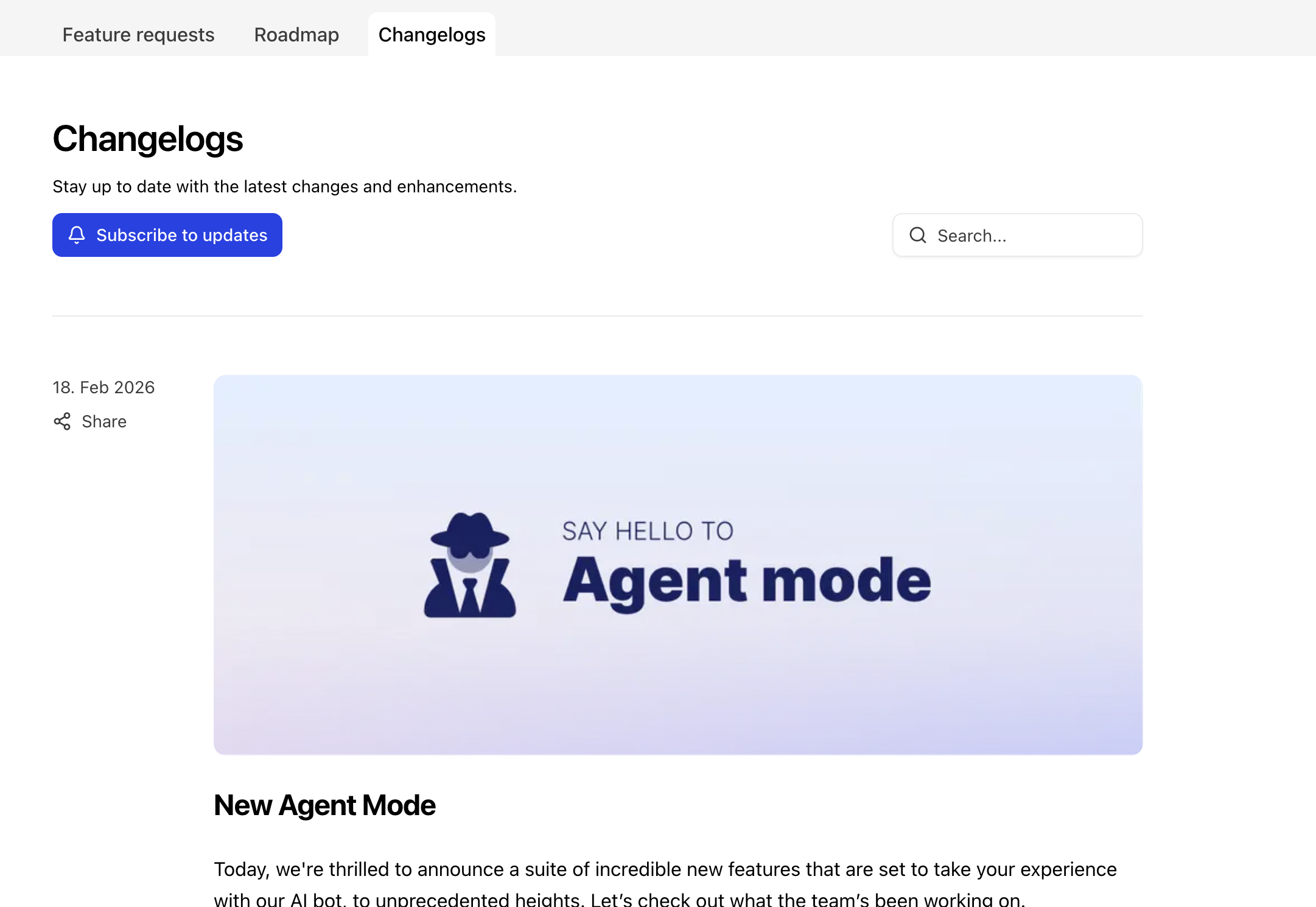
Gleap offers two types of announcements, and knowing when to use each helps you communicate more effectively:
Best for: Product updates, new features, bug fixes, improvements
Changelogs are public-facing and permanently visible in your feedback portal. They're perfect for:
Announcing new features or capabilities
Documenting bug fixes and improvements
Closing the feedback loop (e.g., "We shipped that feature you requested!")
Building a public history of your product evolution
Where they appear:
In the changelogs section of your feedback portal, where any visitor can browse them
As in-app notifications in the feedback widget (just like news items)
Notifications:
Sent directly to users through the widget notification system
Email notifications for users who subscribe in the feedback portal
Where to setup: You can find the Changelogs under Feedback portal → Changelogs
Best for: Announcements, promotions, tips, company updates
News items are delivered directly inside your app via the feedback widget. They're ideal for:
General company announcements or blog posts
Product tips and best practices
Promotional campaigns or special offers
Time-sensitive information that doesn't need to be permanently archived
Where they appear: In the feedback widget as in-app notifications only (not in the feedback portal)
Notifications: Sent directly to users through the widget notification system
Where to setup: You can find the news under Engagement → News & release notes
The main difference: changelogs appear both in your feedback portal and in the widget, while news items only appear in the widget. Use changelogs when you want to build a public, searchable archive of product changes. Use news for everything else.
Create and manage changelogs directly from your Gleap dashboard under the feedback portal section. Each changelog entry can include:
Title — Keep it clear and descriptive
Content — Rich text with formatting, images, and links
Publication date — When the update was released
Once published, your changelog appears immediately in the feedback portal.
Users can react to changelogs with emoji reactions, giving you instant feedback on how they feel about an update. This is a lightweight way for users to engage without writing a full comment.
Users can leave comments to share their thoughts, ask questions, or provide additional feedback on the update. This turns your changelog into a conversation.
Users can subscribe to changelog notifications directly in the feedback portal. When subscribed, they'll receive an email notification every time you publish a new changelog — keeping your most engaged users informed automatically.
In the changelog editor you can choose which email template Gleap should use. Gleap will automatically add the cover image (if you have one) and the title of the changelog at the top of the email. If you want to override this you can do so by adding the CSS class for the cover image and the title:
#changelog-cover-image {
  ...add your css here
}

[data-id="changelog-title"] {
  ...add your css here
}When you ship a feature that users requested, mention it in your changelog and link back to the original feature request. This shows users you're listening and builds trust.
Instead of "Performance improvements," write "Search now returns results 3x faster." Add screenshots or GIFs to show what changed.
Even small updates deserve a changelog. Regular posts keep users engaged and demonstrate consistent progress.
Use changelogs to share excitement about new features. Your enthusiasm is contagious — users love seeing teams that care about their product.