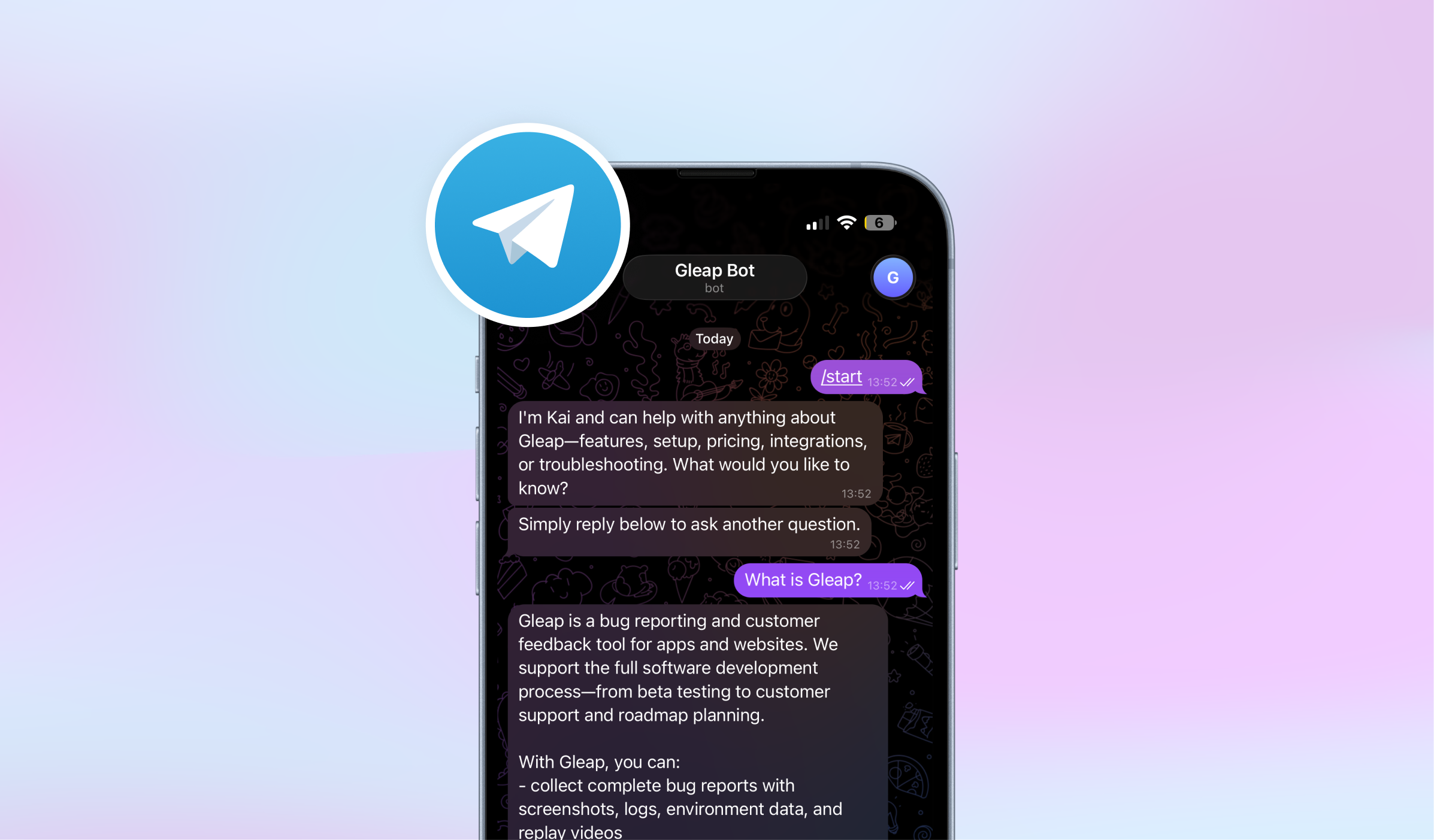
This guide explains how to integrate Telegram with Gleap. By connecting a Telegram bot, you can leverage Gleap's AI bots and live chat features directly on Telegram — all managed from a single inbox.
A Telegram account
Admin access to your Gleap project
Open Telegram and search for @BotFather
Send /newbot
Choose a display name for your bot (e.g., "Acme Support")
Choose a username for your bot (e.g., acme_support_bot) — must end in bot
BotFather will reply with your bot token — copy it

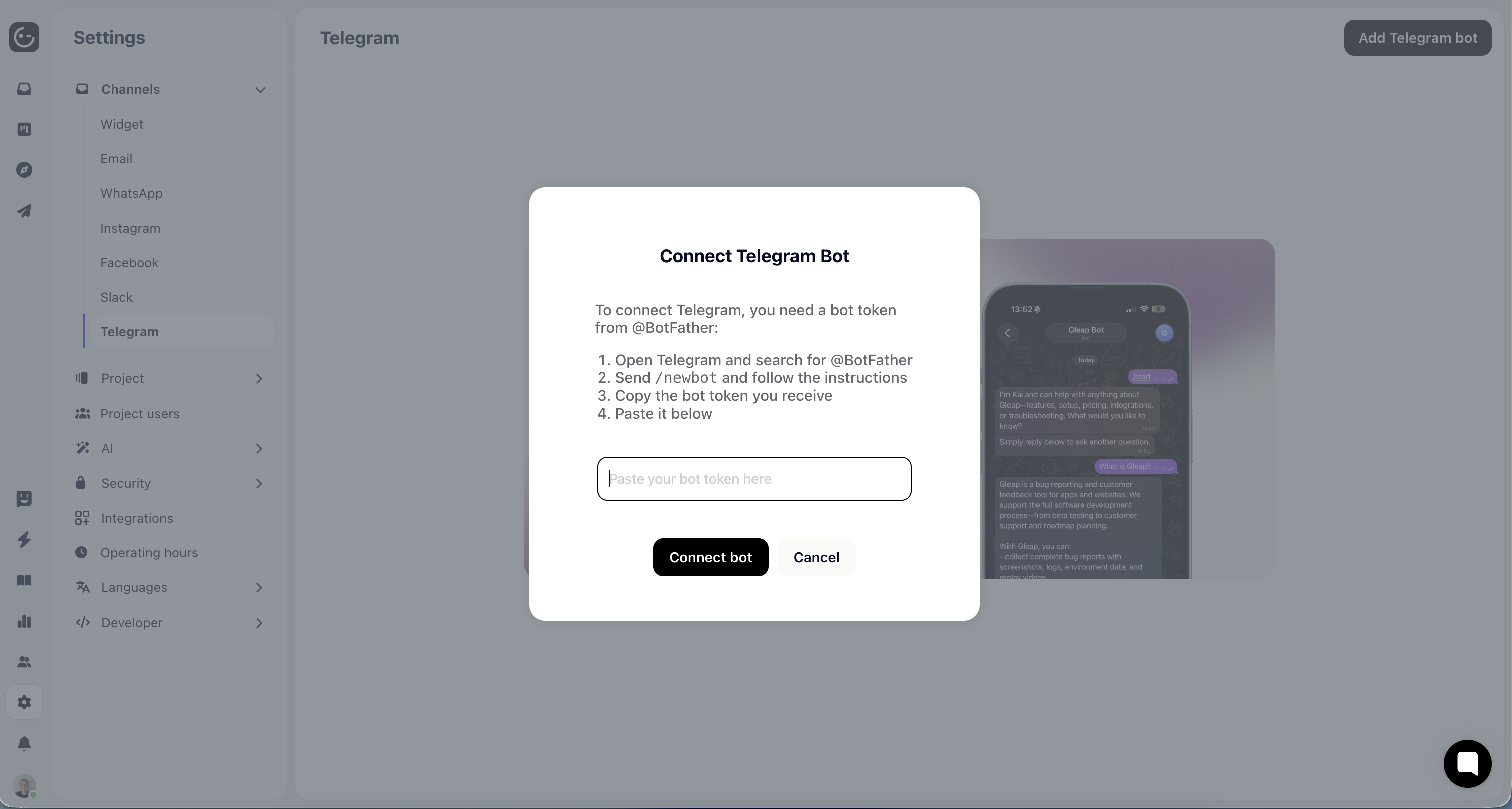
In Gleap, navigate to Settings → Channels → Telegram
Click "Add bot"
Paste your bot token and click "Connect bot"
Your bot is now connected and ready to receive messages
Share your bot link with customers so they can start conversations:
Direct link: https://t.me/your_bot_username
You can also add a "Message us on Telegram" button to your website
Conversations: Every private message to your bot creates a ticket in your Gleap inbox. Reply from Gleap and the message appears instantly in Telegram.
Media support: Customers can send images, documents, videos, voice notes, stickers, locations, and contacts. All media is automatically uploaded and attached to the ticket.
AI bots & workflows: Set up workflows specifically for the Telegram channel. Kai (Gleap's AI bot) works with Telegram, including interactive button responses for guided conversations.
Typing indicators: When an agent starts typing a reply in Gleap, the customer sees a "typing..." indicator in Telegram.
Operator name: Optionally prefix outgoing messages with the agent's name (e.g., [Sarah] How can I help?). Enable this in the channel's message settings.
Ticket creation rules: Configure when new tickets are created:
Time-based: Create a new ticket if the last one is older than X hours
Reply after closure: Automatically create a new ticket when a customer messages after their ticket was closed
Messages not arriving in Gleap?
Verify the bot token is correct in Settings → Channels → Telegram
Make sure the channel is enabled (toggle is on)
Only private messages (1:1 chats) create tickets — group messages are ignored
Bot not responding?
Check that your Gleap server is accessible over HTTPS
Try deleting and re-adding the bot in Gleap to re-register the webhook
Buttons not showing?
Inline keyboard buttons are sent for workflow actions with up to 8 options
For more than 8 options, a numbered text list is sent instead