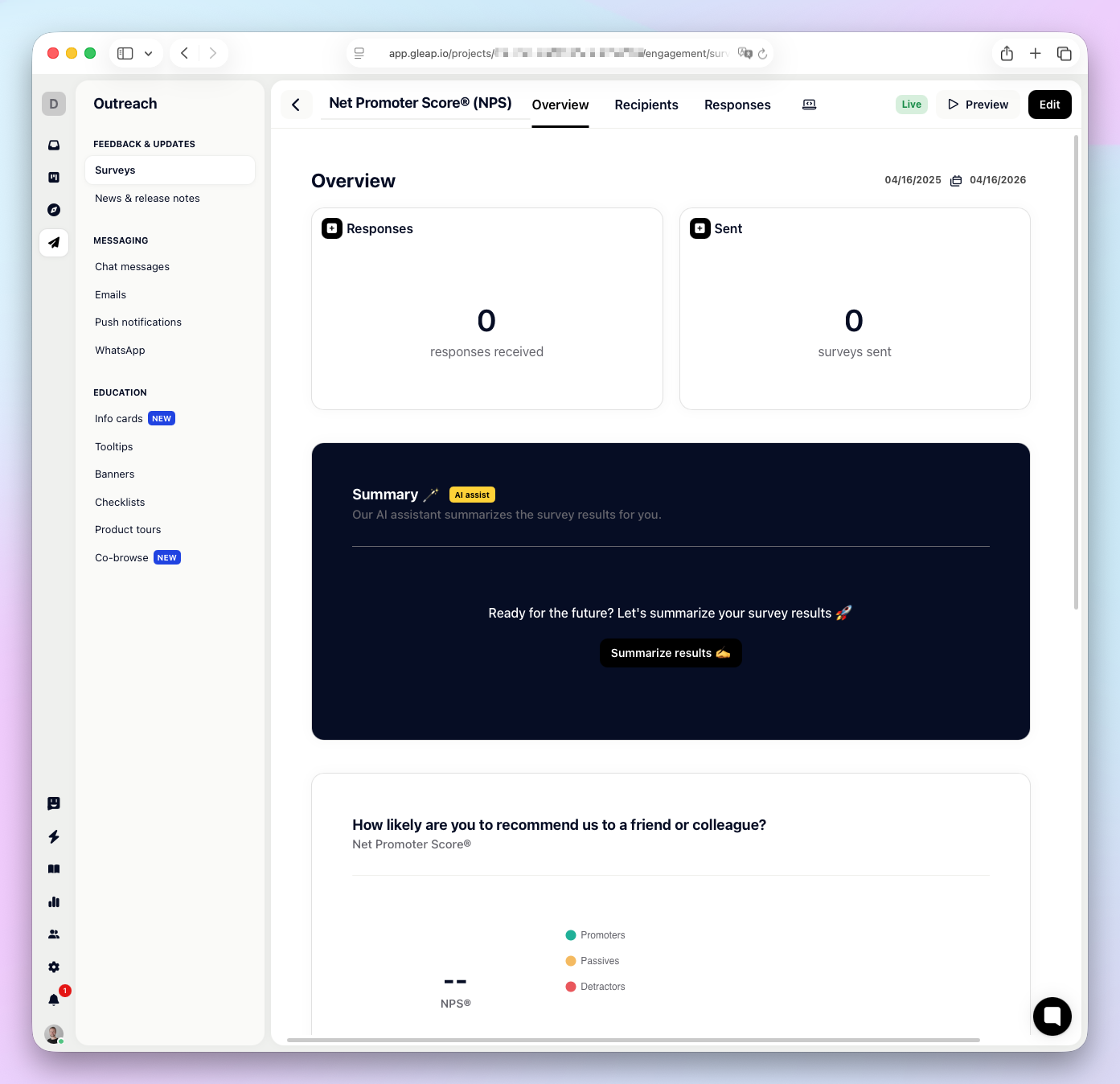
Collect user feedback directly inside your app or website with Gleap surveys. Choose from ready-made templates or build your own, then deliver them in-app, by link, email, or embedded code.
Open Outreach > Surveys in the sidebar and click Create survey.
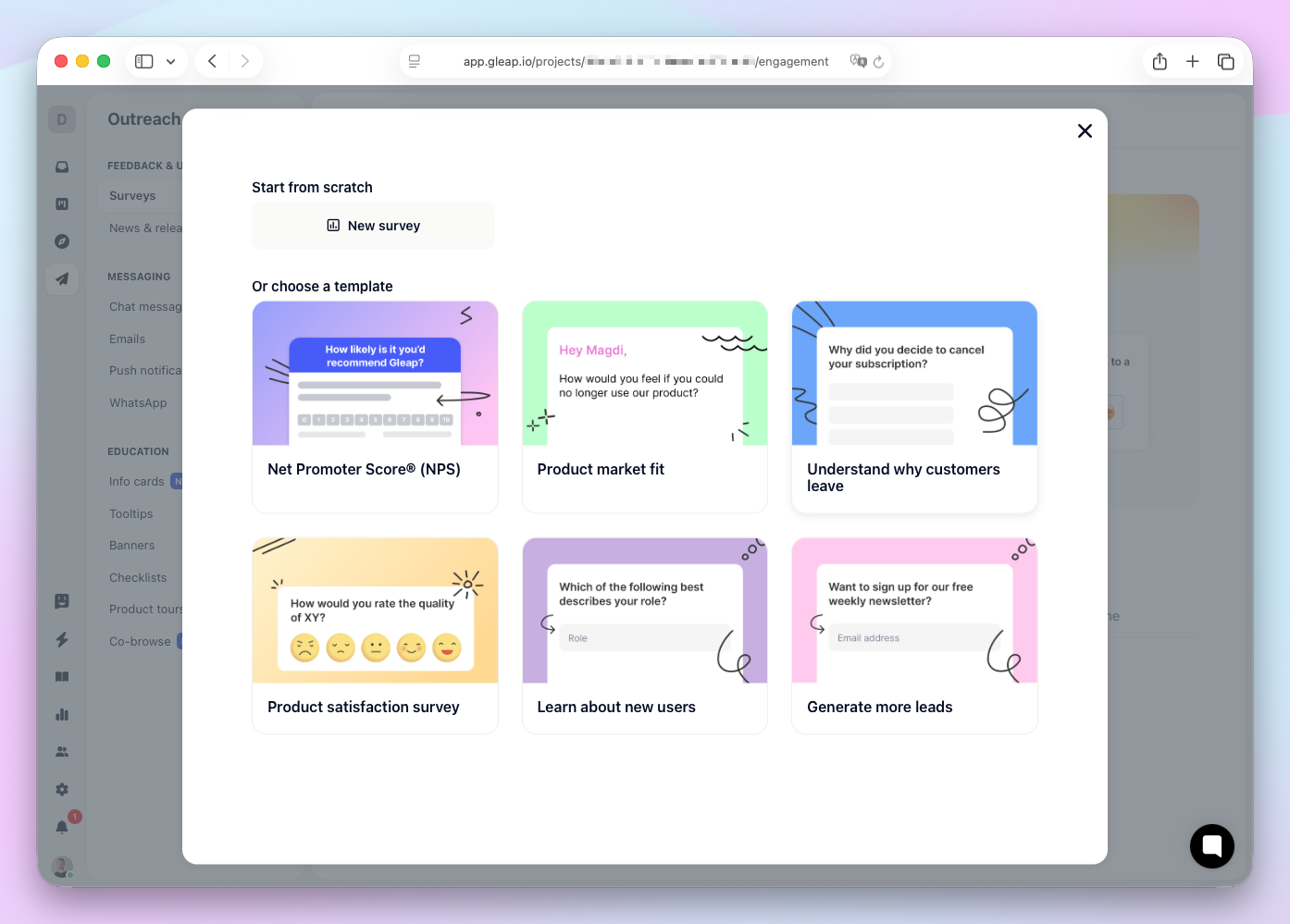
You can start from scratch or pick one of the built-in templates:
Net Promoter Score (NPS) — Measure customer loyalty on a 0–10 scale.
Product Market Fit — Find out how disappointed users would be without your product.
Understand Why Customers Leave — Identify reasons for churn.
Product Satisfaction Survey — Rate overall satisfaction with your product.
Learn About New Users — Discover new users’ roles and expectations.
Generate More Leads — Capture emails and preferences from visitors.
Each template comes with pre-configured questions you can customize in the next step.
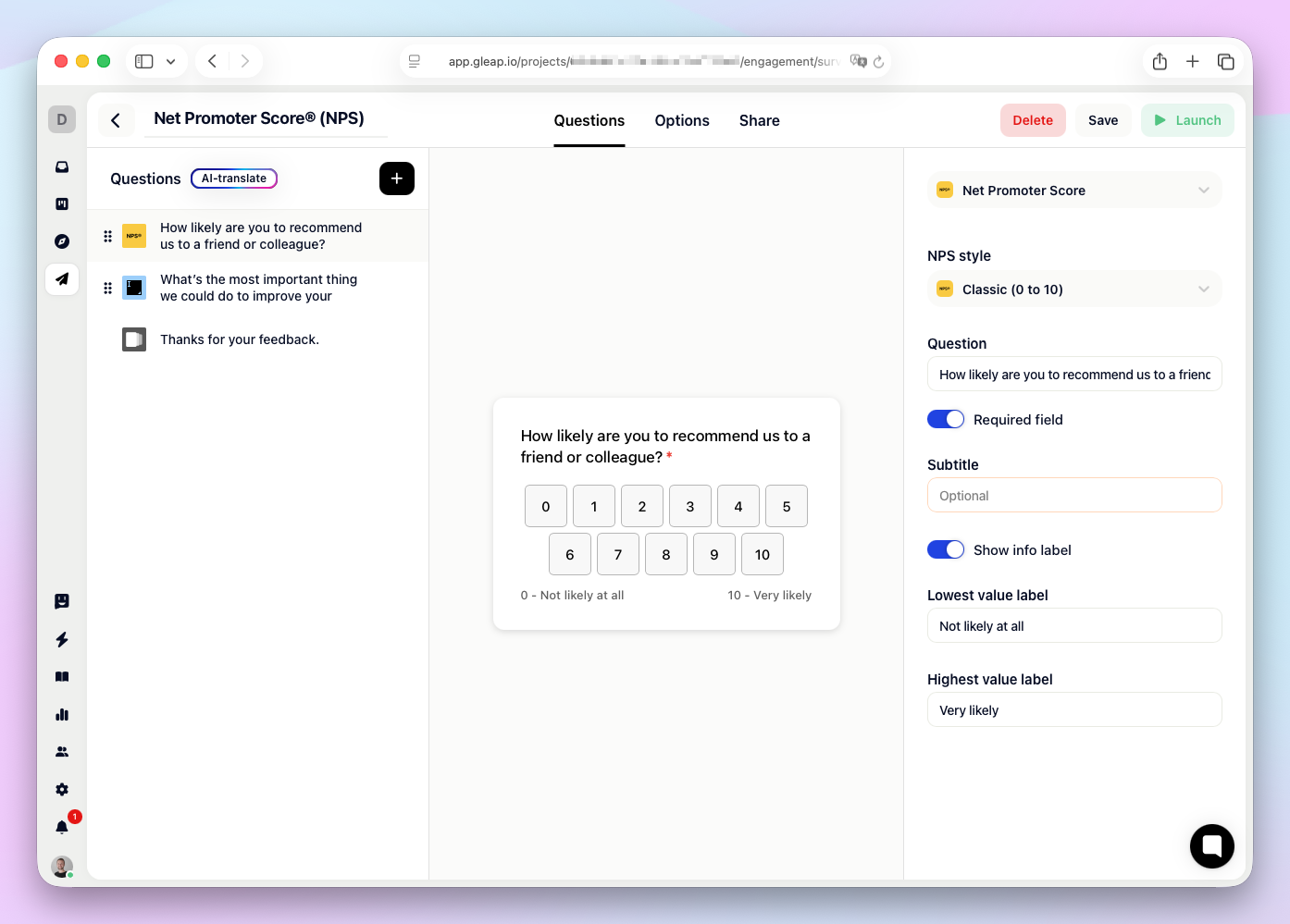
After choosing a template (or starting from scratch), you land on the Questions tab of the survey editor.
Type | Description |
|---|---|
NPS (Net Promoter Score) | 0–10 scale, available in numeric or emoji style |
Rating | Star-based rating scale |
1 to 5 scale | Simple numeric scale |
Multiple choice | Single-select from a list of options |
Multiple choice (multi-select) | Select multiple options at once |
Text | Short free-text input |
Long text | Multi-line text area for detailed feedback |
Email address input | |
Phone | Phone number input |
File upload | Let respondents attach files |
Click Add question to add more questions, drag to reorder, and use the trash icon to remove them.
To translate your survey into other languages, click the language tab above any question field. Select the target language at the top and enter your translations. This applies to question titles, descriptions, answer options, and scale labels.
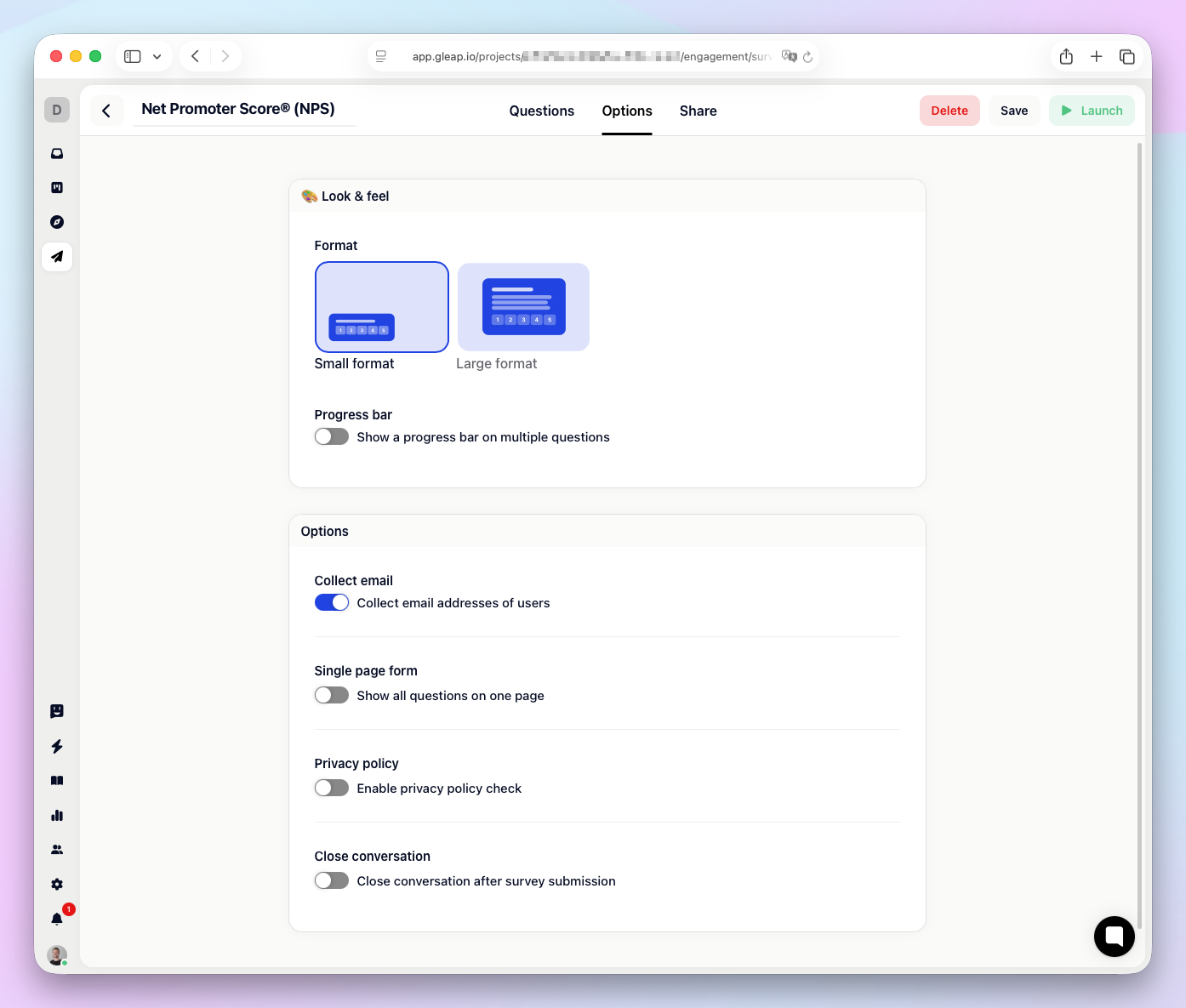
Switch to the Options tab to configure how your survey looks and behaves.
Choose between two display formats:
Small format — A compact survey widget that appears in the corner of your app.
Large format — A full-page survey experience. When using large format, you can add an intro title and intro message to greet respondents before they start.
Setting | What it does |
|---|---|
Show progress bar | Displays a progress indicator on multi-question surveys |
Collect email | Asks respondents for their email address |
Privacy policy | Shows a privacy policy checkbox with a link to your policy URL |
Single page form | Shows all questions on one page instead of step-by-step |
Close conversation on submission | Automatically closes the conversation after the survey is completed |
The Share tab gives you four ways to deliver your survey to users.
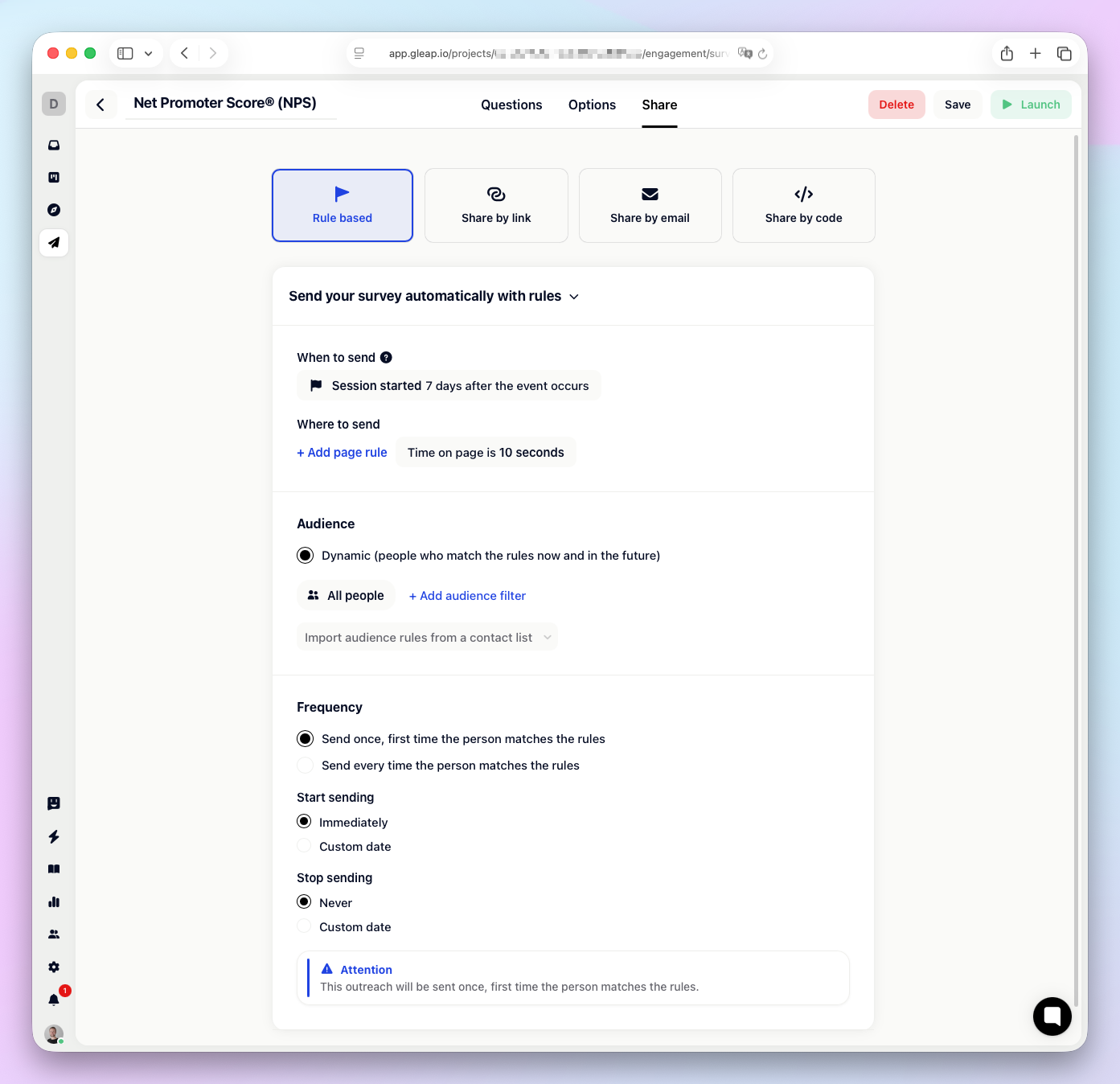
Automatically show the survey inside your app when conditions are met.
Choose a trigger event
Every rule-based survey needs a trigger event. Click + Add event and select either:
Predefined events — Built-in events like “Signed up”, “Session started”, etc. These are evaluated every time a user starts a new session.
Custom events — Events you track through the Gleap SDK (up to 120 different custom events). These are evaluated the moment they are tracked.
Delay the trigger
To add a delay, select “after the event occurs” and specify the number of days. The survey will be scheduled for delivery after the delay.
Target audience
Choose who should receive the survey:
All people — Both users and visitors
Users only — Only identified/authenticated users
Leads only — Only anonymous visitors
You can further narrow the audience with conditions — for example, “signed up more than 5 days ago” or “plan equals Pro”. Conditions support count-based, data-based, and date-based filters that can be combined with AND/OR logic.
Page rules
Restrict the survey to specific pages by adding page URL rules. Match types include: is, is not, contains, does not contain, starts with, ends with, is empty, and is not empty. You can add multiple page rules.
Frequency
Control how often the survey is shown:
Once — Show the survey only once per user (e.g., for a welcome survey).
Every X days — Repeat at a set interval (e.g., every 45 days for NPS).
You can also set a start date and stop date to limit the active period.
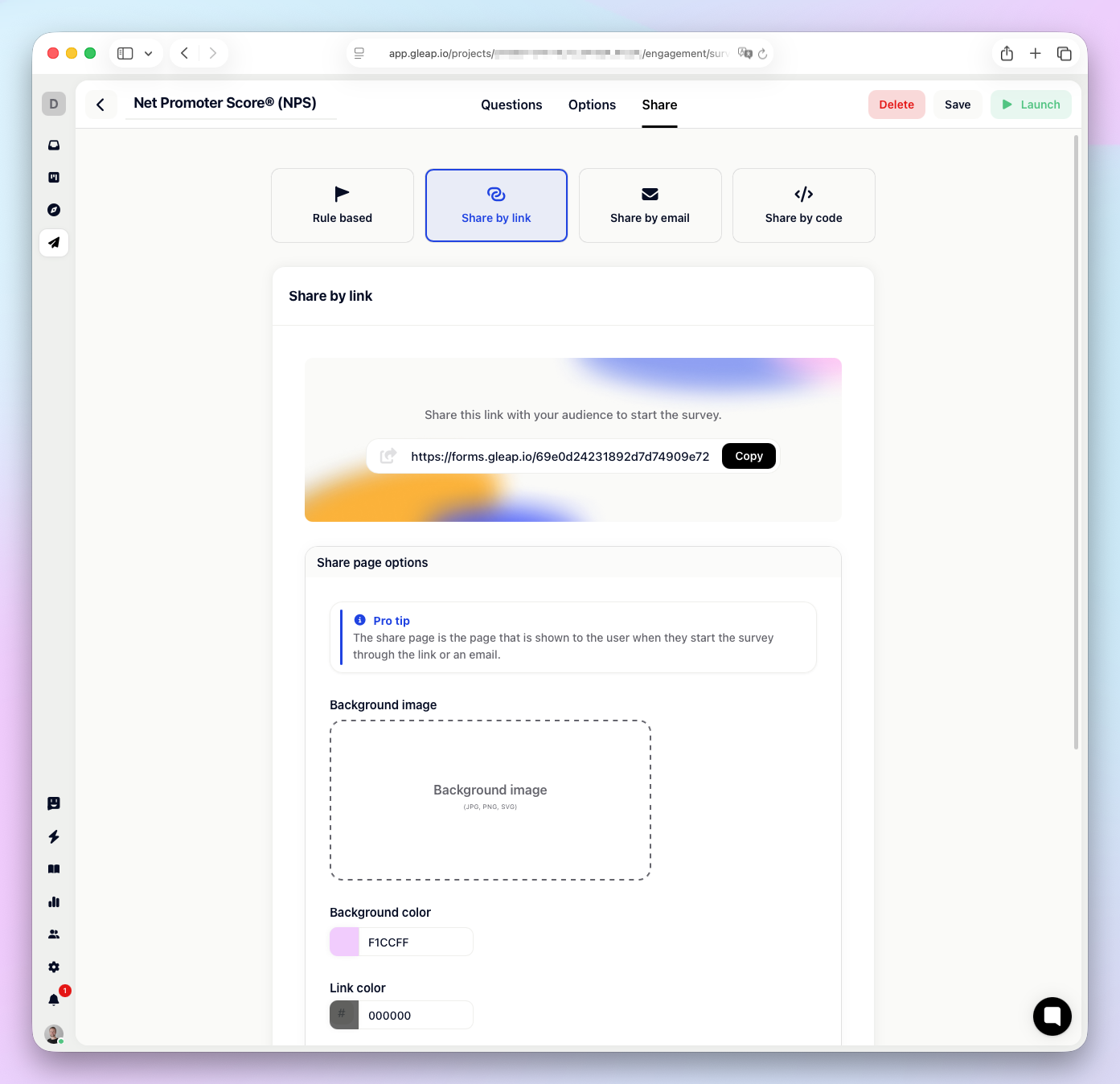
Generate a shareable link to your survey. Anyone with the link can respond — no Gleap SDK required.
Customize the link page:
Background image and background color
Link color for buttons and accents
Redirect on submission — Send respondents to a custom URL after completing the survey
Footer links — Add links to your legal pages or help center
Create an email campaign that includes your survey. Gleap generates a pre-built email template with a survey link and personalization tokens. Click the email option to set up the campaign.
Get an embeddable code snippet to place your survey on any webpage, even outside your app.
Once your survey is live, open it from the survey list to view results. The detail page has four tabs:
Overview — Key stats like response count, sent count, and (for NPS surveys) score breakdown. An AI summary automatically analyzes open-ended responses.
Recipients — See which users received the survey.
Responses — Browse individual responses with date filtering.
Activity — Track engagement events.
Use the Export button to download all responses as a CSV file, including custom data fields and respondent details.