By default, an agent runs whenever a user chats with it. Triggers let you start agent runs in other ways. On a schedule, in response to an event, or by calling an HTTP endpoint from your own code.
You'll find triggers in the Triggers section of your agent's Settings panel. An agent can have any number of triggers, and each one can be enabled or disabled independently.
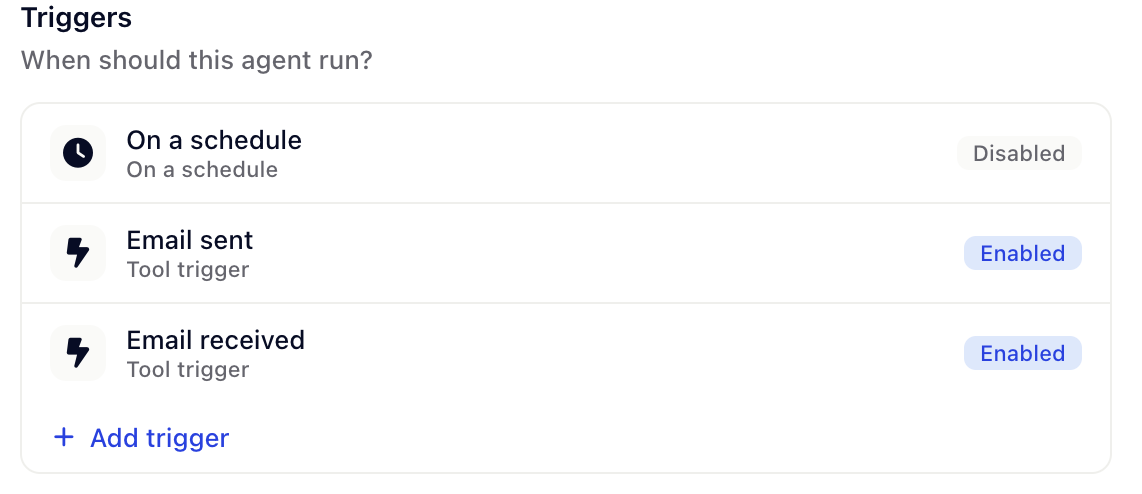
Triggers are for non-conversational invocations. A few things to keep in mind:
A user chatting with the agent does not need a trigger — chat is the default entry point.
A triggered run typically starts a fresh conversation (no user on the other side).
Each trigger has a Label so you can recognize it in the list (e.g. Nightly customer digest, On signup event).
Triggers fire only while the agent is Live.
You can hit Run now on any saved trigger to test it without waiting for the schedule or event.
Click Add trigger and pick one of four types:
The API call trigger lets you start an agent run by hitting a Gleap HTTP endpoint from anywhere — your backend, a CI pipeline, a webhook from a service that doesn't have a Gleap integration, a cron job on your infrastructure.
When to use it: You want full control over when the agent runs and you'll fire it from your own systems.
What you configure:
Label — a display name.
Enabled — when off, calls to the endpoint are rejected.
The trigger is authenticated with your existing Gleap service account JWT, so you can call it without setting up new credentials. Gleap shows you the endpoint URL and an example request once the trigger is saved.
The On a schedule trigger runs the agent automatically on a recurring interval. Each run schedules the next one, so set it and forget it.
When to use it: Recurring jobs — daily summaries, weekly reports, periodic checks, nightly data syncs.
What you configure:
Interval — an amount and a unit (seconds, minutes, hours, days, or weeks).
Time of day — when running daily or weekly, the local time the run should fire (e.g. 09:00).
Days of the week — when running weekly, the days the agent should run.
Enabled — pause without losing the schedule.
The On event trigger fires the agent when an SDK event occurs in your app — page views, session start, sign-ups, custom events you track via the Gleap SDK.
When to use it: Reacting to user behavior in your product — onboarding nudges, a check-in after an error, a follow-up after a feature is used.
What you configure:
Event — which event to listen for.
Target audience — who the trigger applies to (all users or filtered by criteria).
Conditions — additional rules the user or session must match (combined with AND / OR).
Frequency — Once per user, or Recurring with a cooldown in days.
The Tool trigger fires the agent when something happens in a connected tool — a new GitHub commit, a Slack message, a new email, a Linear issue update, and so on.
When to use it: Cross-tool automation — when an issue is created in Linear, run the triage agent; when a payment fails in Stripe, run the recovery agent.
What you configure:
Toolkit — which connected tool the trigger comes from (e.g. GitHub, Slack, Linear). Requires that tool to already be connected to your agent as an MCP tool.
Trigger type — which event in that tool fires the run (e.g. new issue, new message, commit pushed).
Trigger configuration — tool-specific options (e.g. which repo, which channel).
Tool triggers are powered by Composio — the same provider that backs many of the MCP tool presets — so any of Composio's 1,000+ integrations that publish events can be used here.
Every trigger has its own Enabled toggle. Disable a trigger to stop it from firing without losing its configuration — handy during incidents or while you iterate on the agent's instructions.
Once a trigger is saved, click Run now in the trigger editor to fire it immediately. This is the fastest way to test scheduled and event triggers without waiting for them to fire naturally.
An agent can have multiple triggers at once. Common pattern: one On a schedule trigger for a daily run, plus an API call trigger so your team can also kick it off manually when needed. Both produce independent runs you can review in the agent's run history.
Multi-agent collaboration — let agents hand off, delegate, and ask humans for input.
Going live — access, webhooks, and monitoring — ship your agent and inspect run history.