Installing the SDK connects your app or website to Gleap. It takes one line of code and your project's SDK key.
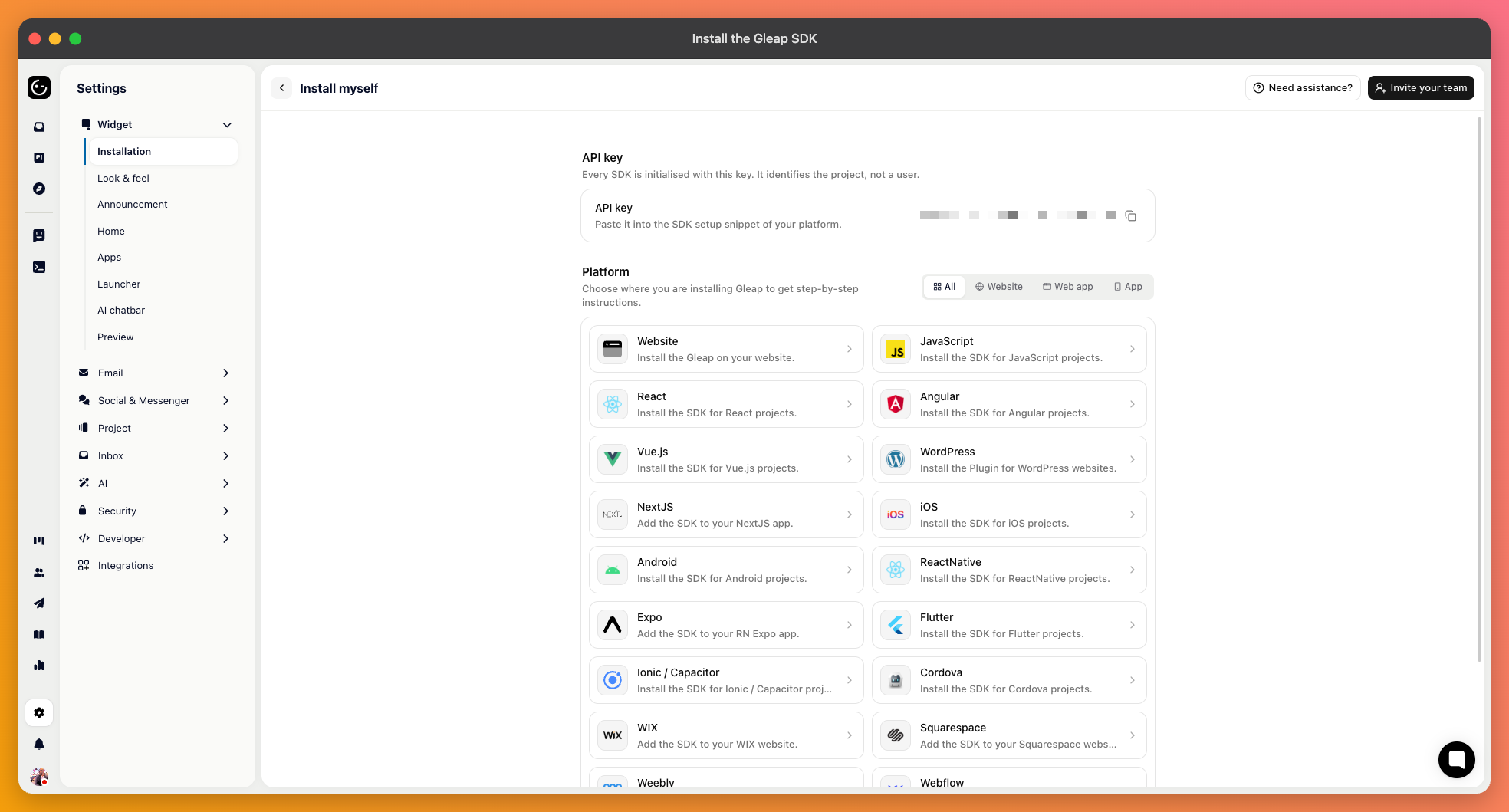
Open your project and go to Settings, then Installation. The SDK key is shown there along with a ready-made snippet for each platform. The key identifies your project and is safe to include in client-side code.
Gleap has a native SDK for each of these:
Web — JavaScript, which covers React, Vue, Angular, Next.js and any other framework, plus plain HTML pages
Mobile — iOS, Android, React Native, Flutter, FlutterFlow, Ionic / Capacitor and Cordova
Desktop and games — Windows Desktop, .NET MAUI and Unity, all currently in beta
For WordPress, there's a plugin, so no code is needed. Site builders such as Webflow, Squarespace, Wix, and Google Tag Manager accept the JavaScript snippet in their custom code field.
Each platform has its own guide in the developer documentation at docs.gleap.io, covering installation and the platform-specific options. Settings, then Installation also links straight to the guide for whichever platform you pick.
Load your app or website and look for the Gleap launcher. Open it and send a test message. It appears in your inbox within a few seconds, with the browser, device, and page it came from attached.
If nothing appears, the usual causes are a mistyped SDK key, the snippet being placed somewhere it never runs, or a domain restriction blocking the page you're testing on.
The SDK works straight away for anonymous visitors. To get the most out of it, identify your signed-in users, so Gleap knows who is writing.