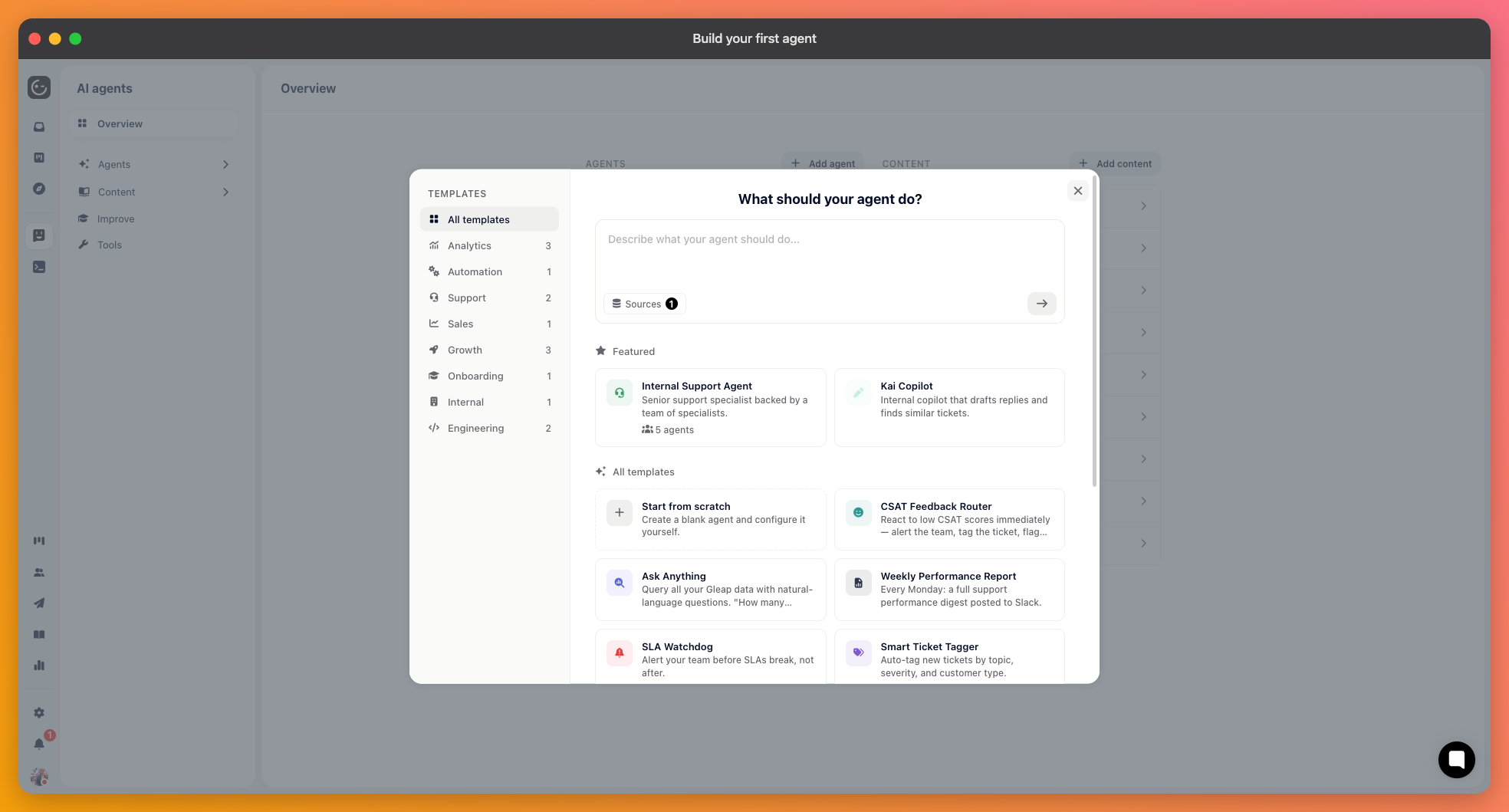
Open AI agents and choose Create agent. You have three ways in:
From a template: browse by area and start from a working configuration.
From a description: describe the job in plain language and Gleap uses AI to draft the setup for you: name, instructions, tools, triggers and quick actions. For bigger jobs it can draft several agents that work together. You can point it at your knowledge base or a connected code repository so the draft starts from what you actually have.
From scratch: you get an empty agent and write the instructions and pick the tools yourself.
All three give you the same kind of agent, and you can change everything afterwards. Only the starting point is different. Every agent uses an AI model when it runs, however you created it. If you want fixed rules with no AI, build a Workflow instead.
For a first agent, take a template even if it isn't quite your case. Reading a working set of instructions teaches you more than an empty box, and you can rewrite all of it.
You land on the agent's page: a chat on one side, settings on the other. The settings run top to bottom in the order below, and nothing is saved until you press Save.
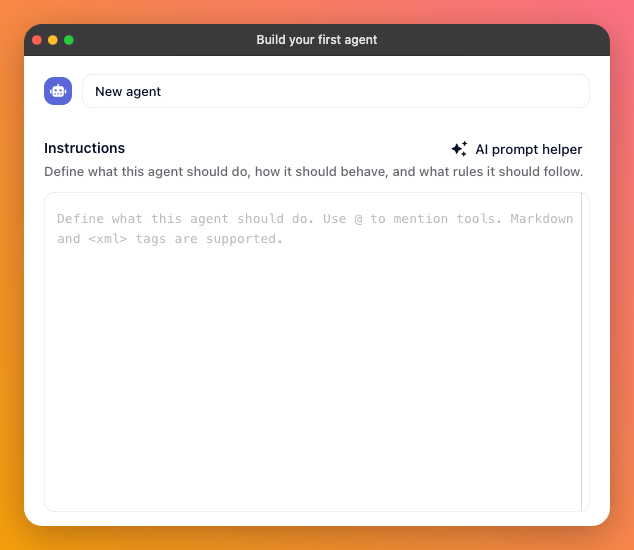
Pick a name your team will recognise in a list — "Refunds", "SLA watchdog" — and an icon and colour, which is how you'll tell agents apart at a glance once you have several.
This is where an agent is won or lost. Write who the agent is, what it's responsible for, and — most importantly — what it must not do and when it should stop and ask.
Three things worth being explicit about:
The boundary. "If the refund is over €200 or the order is older than 90 days, hand it to a human instead of deciding."
What to do when a tool fails or returns nothing, rather than leaving the agent to invent a way forward.
How it should sound, if it talks to customers.

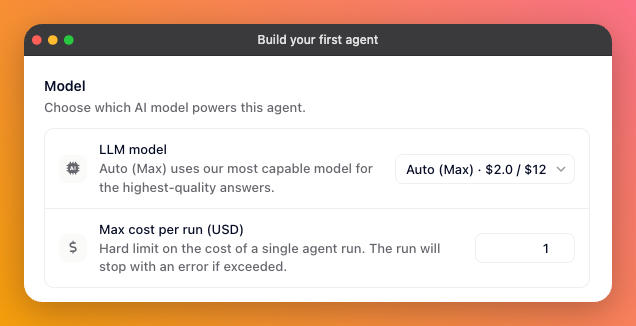
Each agent has its own model, chosen independently of Kai. Under Output, Styled replies is on by default — it formats the agent's answers as rich text rather than plain text. Note that styled replies only render in the dashboard; the widget always shows plain text.
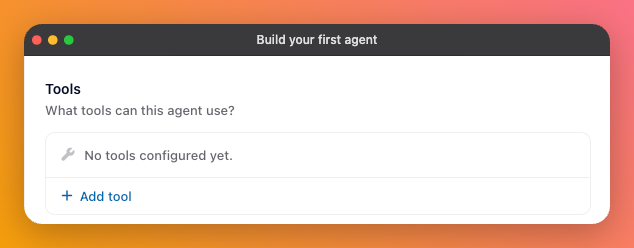
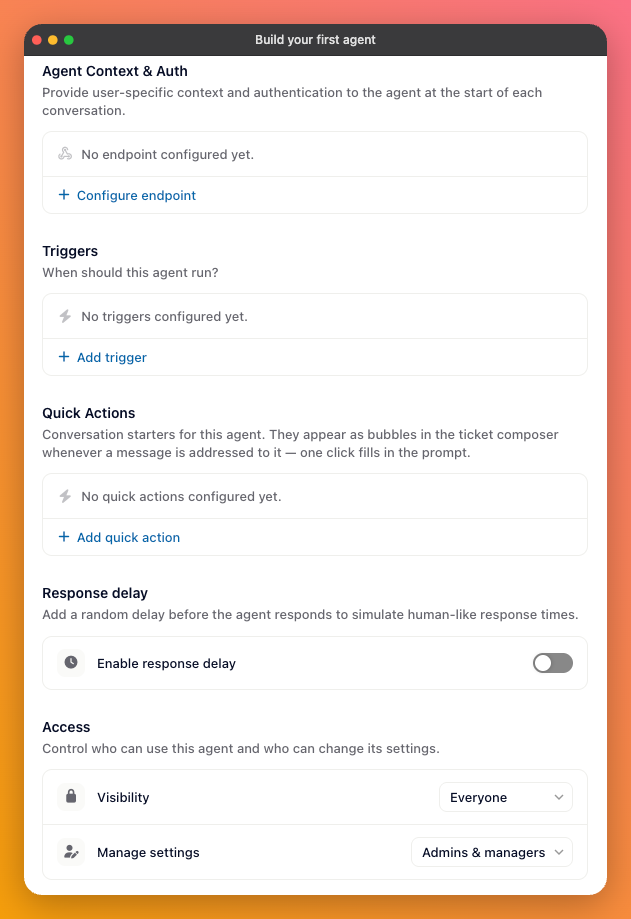
Below that sit the tools the agent may use and the triggers that start it. Both have their own articles in this collection. For a first agent, it's fine to leave triggers empty and start it by hand from a ticket.
Quick actions are named shortcuts your team sees in the ticket sidebar when working with this agent. Each has a label and the prompt it sends — a label like "Draft customer reply" with a prompt like "Draft a friendly reply to the latest customer message."
They matter more than they look. An agent nobody remembers how to phrase a request to goes unused; two or three good shortcuts make it part of the daily routine.
For agents that reply to customers, you can add a random delay before each response — a minimum and maximum between 5 and 300 seconds — so answers don't arrive instantly. Leave it off for internal agents, where waiting serves no purpose.
Decide who may use the agent — everyone, only you, or specific people. Admins always have access to any agent, regardless of this setting.
A draft agent can't run — its triggers don't fire, a workflow can't hand a conversation to it, and its chat console is disabled, so you can't test it while it's still a draft. To try it, press Publish. If you don't want it live for the whole team yet, set Access to Only me first, publish, then widen access once it behaves.
Once it's live, use the chat on the agent's own page. Give it the kind of request it will really get, including an awkward one, and check that it stops where you told it to. You can pause or unpublish it at any time.