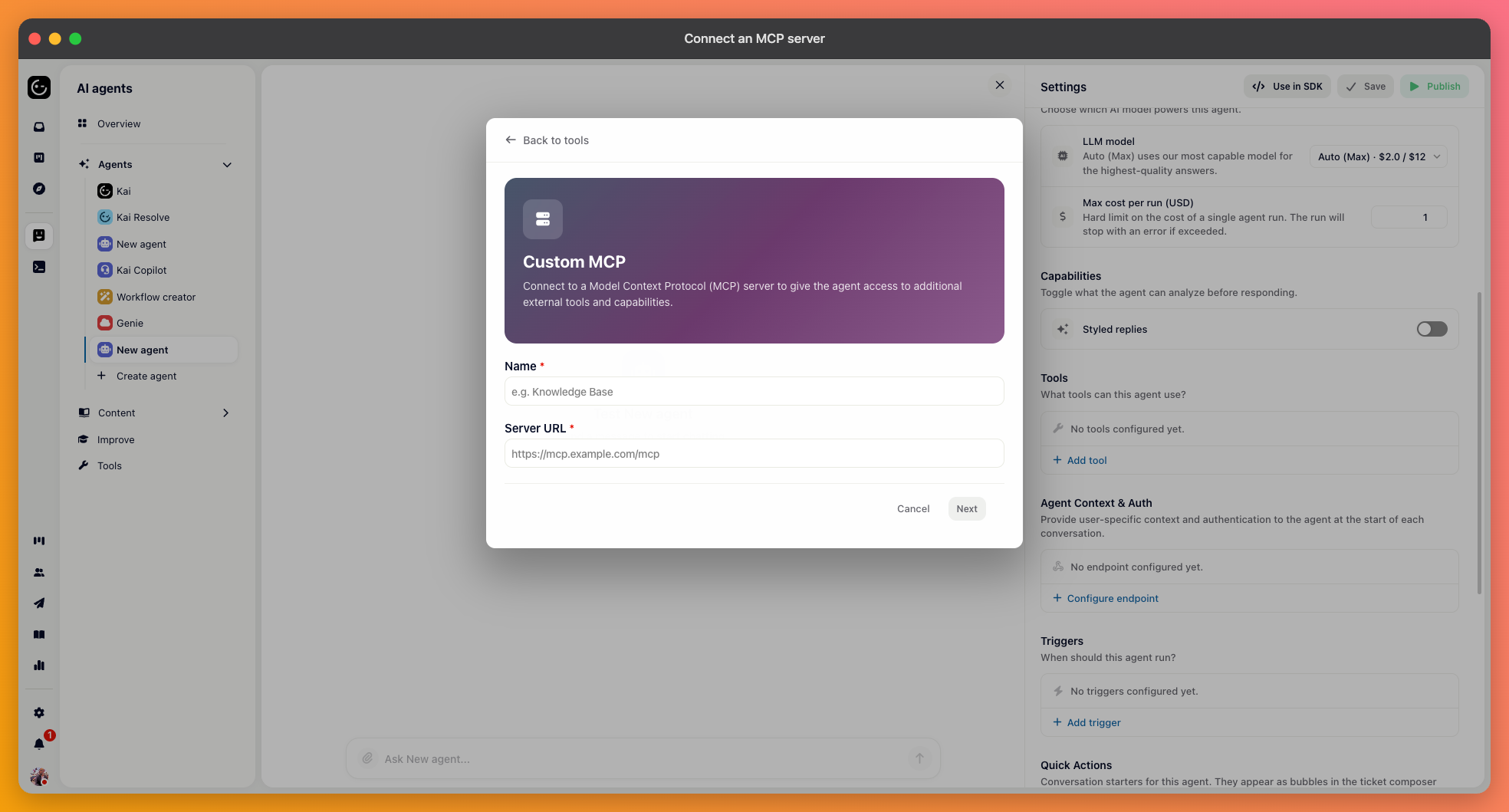
MCP is a standard way for a system to expose its capabilities to an AI agent. If you run your own MCP server, or the service you want offers one, you can connect it instead of wiring up individual API calls.
Several ready-made integrations in the tool picker already work this way — Slack among them. You only need the steps below for your own server, or one that isn't listed.
In the agent's Tools section, choose Add tool and pick Custom MCP. Give it a name your team will recognise, then enter the server URL.

Three choices.
No authentication — only for a server that exposes nothing sensitive.
Headers — enter the header names and values yourself; this is how most token-based servers are reached.
OAuth 2.0 — enter a client ID, plus an optional client secret and scopes. The form shows a redirect URI to register with your provider.
Prefer OAuth where the server supports it: a pasted token stays valid until someone rotates it, but an OAuth connection can be revoked on the provider's side without touching Gleap.
Once connected, Gleap asks the server what it offers and lists everything under Available tools, each with its own description. All start enabled; switch off the ones this agent shouldn't have.
Do switch some off. A general-purpose server often exposes dozens of tools, and each one is another option the agent weighs on every turn. An agent with six relevant tools makes better choices than one with forty that mostly don't apply.
It's also the simplest way to keep an agent read-only: leave the tools that fetch enabled and switch off the ones that change or delete.
An empty list after the connection settles usually points to one of three things: the URL has the wrong path, the credentials are rejected so the server returns nothing, or the server genuinely exposes no tools. Check the URL against your provider's docs — MCP endpoints often sit on a specific path rather than the domain root.