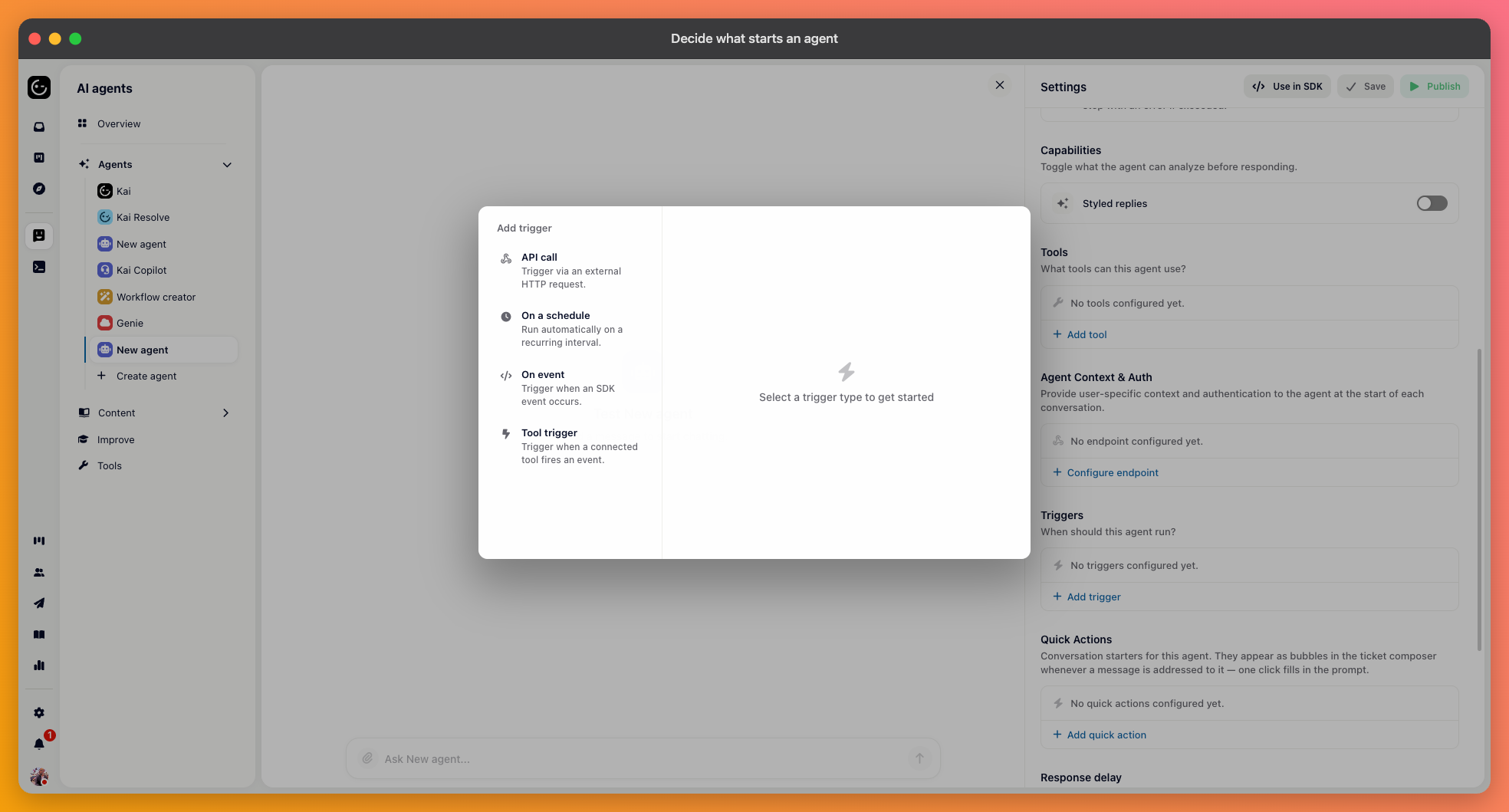
By default, an agent runs whenever a user chats with it — no trigger needed. Triggers are what let it run in other ways, on its own. In the agent's Settings panel, find Triggers and choose Add trigger — there are four kinds, and an agent can have more than one.

Runs the agent at a fixed interval — every so many minutes, hours, days, or weeks. This is the one for recurring work with no external cause: a weekly summary, a nightly check for tickets that have gone quiet, a Monday morning report.
Since a scheduled run has no conversation behind it, write the instructions so the agent knows where to look for its work and what to do when there's nothing to do.
Runs when an SDK event occurs in your app — a page view, a session start, a sign-up, or a custom event you track through the Gleap SDK. You pick the event, then set two things that matter more than they look.
Audience — who the trigger applies to, so an agent can watch a segment rather than everyone.
Frequency — once per user, or recurring with a cooldown measured in days.
Frequency is where costs are decided. Recurring on a frequent event means a run for each occurrence; "once per user" suits things like a welcome that should never repeat for the same person. When in doubt, start with the most restrictive option and loosen it once you've seen the volume.
Runs when something happens in a connected third-party tool rather than in Gleap — an issue moved, a deal changed, a message posted. Use it to react to systems your team works in without building a webhook yourself.
Lets your own code start the agent. Once you save the trigger, Gleap gives you a POST endpoint (copyable) and an example request, so you can call it from a backend job, a deploy pipeline, or any system that already knows when the agent should run. It's authenticated with your existing Gleap service account, so there are no new credentials to set up.
Treat the call as authenticated: keep it server-side rather than in anything a browser can read.
There's a fifth route that isn't a trigger at all: a workflow can pass a live customer conversation to a specific agent. That's configured in the workflow rather than on the agent, and it's how an agent takes over a customer thread mid-flight. (← verify mechanism with team)
Run the agent by hand a few times first, with the kind of input the trigger will produce. An agent that behaves well in a chat you're watching can behave differently on a schedule at three in the morning, and a trigger that fires on a common event turns one bad decision into a great many.