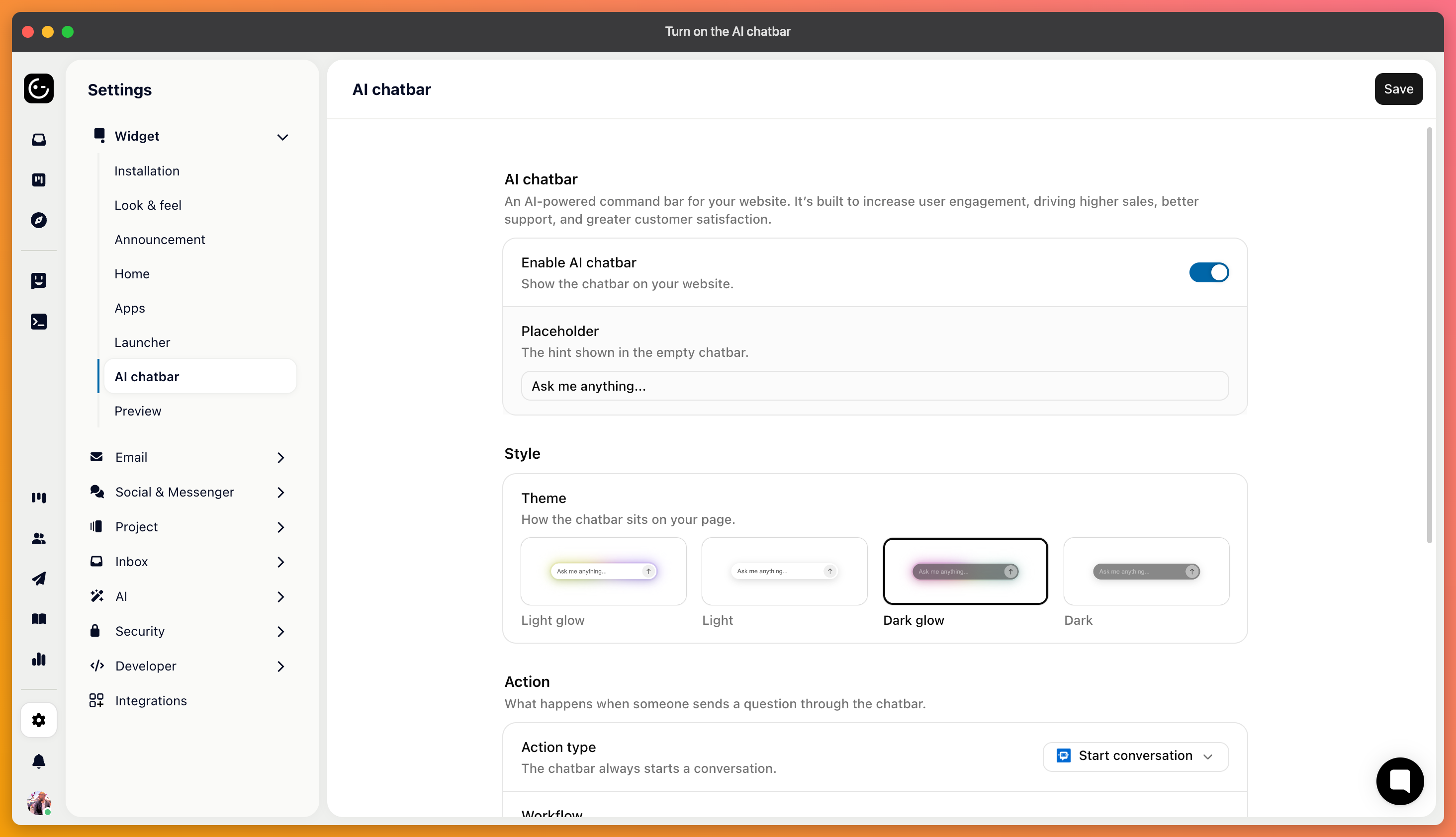
The AI chatbar is a slim input that sits in your product, so someone with a question can type it straight away instead of finding the launcher, opening the messenger, and picking an option first.
It's the shortest path from “I'm stuck” to an answer, which is why it tends to raise the number of questions asked and lower the number that reach your team.
In your widget settings, open the AI chatbar section and enable it. Then set two things.
The placeholder — the grey text in the empty bar. This does real work: “Ask a question” invites anything, while “Search help articles” makes people phrase keywords. Ask for what you want.
Quick actions — a few suggested questions shown before anyone types. Use the questions you actually get most, taken from your inbox rather than from what you'd like people to ask.
There's also a style setting for how the bar looks, and an action controlling what happens when someone uses it.
The audience settings decide who gets the bar at all. Useful when you want it for signed-in customers but not for visitors, or only for a segment you're testing with.
You can show and hide the bar yourself, which matters on screens where it would be in the way:
Gleap.hideAiChatbar();
Gleap.showAiChatbar();
The placeholder and quick actions can also be set at runtime, which is worth doing on pages about a specific area — suggesting billing questions on the billing screen beats a generic prompt everywhere:
Gleap.setAiChatbarPlaceholder("Ask about your invoice");
Gleap.setAiChatbarQuickActions([
  "Where can I find my invoices?",
  "How do I change my payment method?"
]);