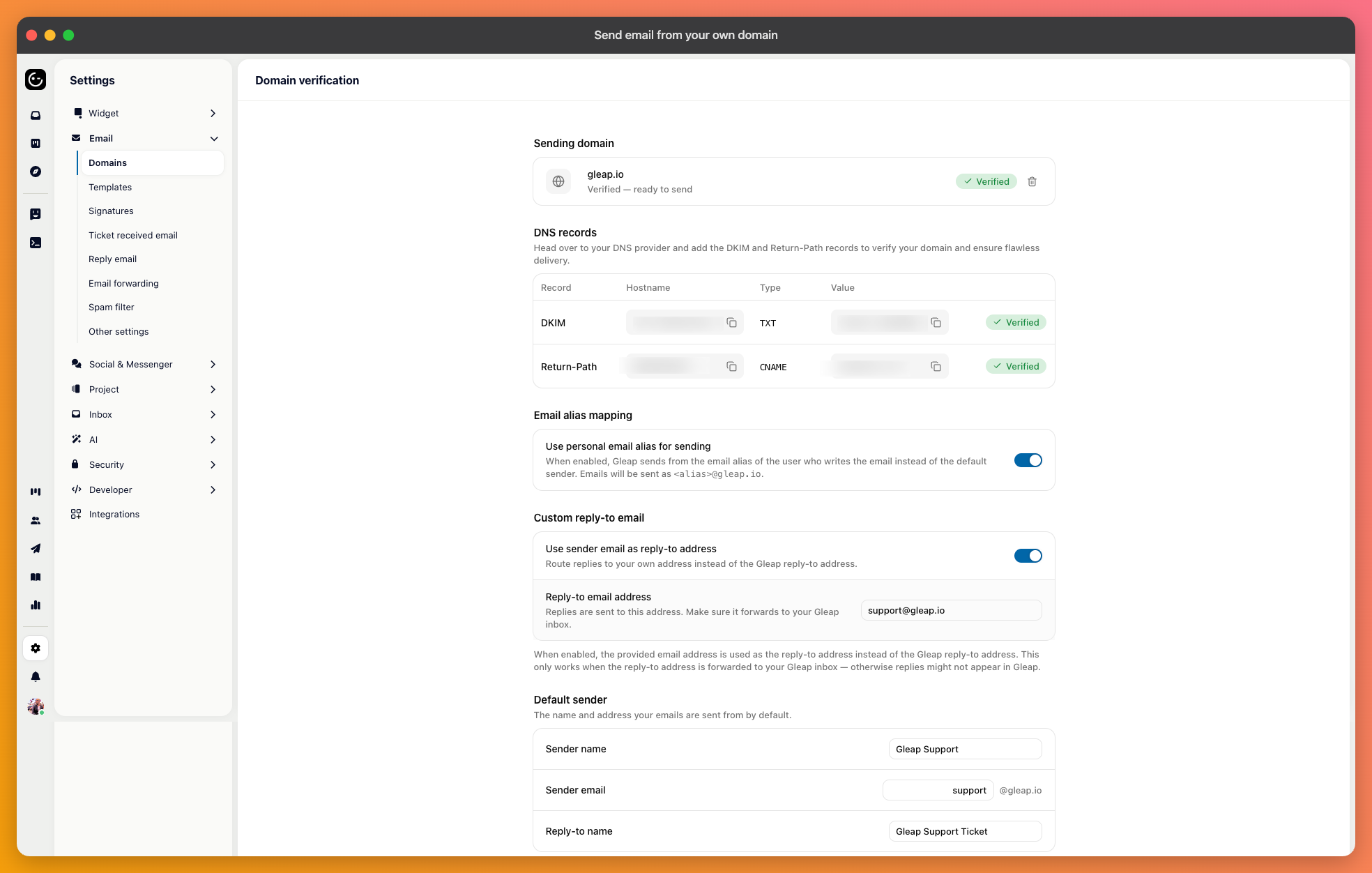
Until you verify a domain, replies go out from a Gleap address. Verifying lets them come from yours, which customers recognise, and spam filters treat far better.
Add your domain in the domain settings, and you'll be given a set of DNS records to create — a CNAME, TXT entries and DKIM — which together prove the domain is yours and let receiving servers verify that mail really came from you.
Add them exactly as shown at whoever hosts your DNS. Once they're in place, the page confirms the domain is verified.

DNS changes can take up to 48 hours to be visible, though it's usually much quicker. If it hasn't verified after a day, check the records for a trailing dot or a copied-in domain suffix before assuming it's still propagating.
Once verified, you set the default sender address and the name shown beside it. This is what customers see in their inbox, so use something they'd expect — your product name rather than an internal team name.
You can also set a custom reply-to address, or have replies go back to whichever teammate sent the message. The second keeps a thread with one person; the first keeps everything landing in a shared place. For a support team, a shared address is usually safer — people go on holiday.
With email alias mapping switched on, each teammate's replies are sent from their own address on your domain instead of the shared sender. Customers see a message from a named person rather than from support@, which reads as more personal.
It only makes sense if those addresses genuinely exist on your domain, and it works best on small teams where the same person tends to see a case through.
Send yourself a reply from a ticket and open it at a couple of providers — a Gmail address and an Outlook one, ideally. Confirm it arrives in the inbox rather than in spam, that the sender name reads correctly, and that replying to it comes back into Gleap.