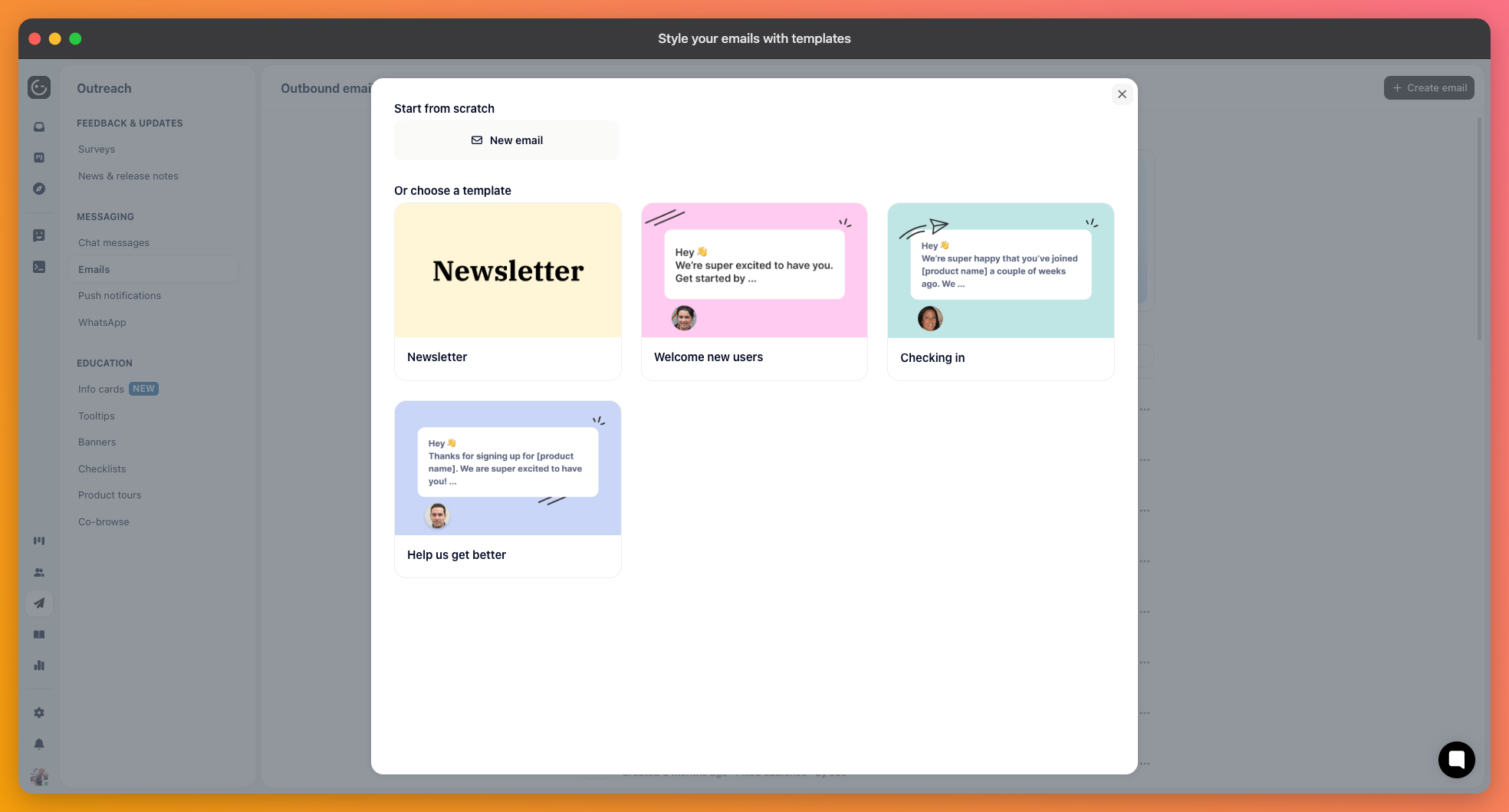
When Gleap sends an email, your message is placed inside a template that supplies the layout, colours, and footer. Editing the template changes how every email looks without touching a single reply.
Under your email channel settings, you'll find separate templates for different kinds of mail: the general one used for replies from your team, and the automatic message confirming that a ticket was received.
They're kept apart because they do different jobs. A reply should look like a message from a person; a receipt confirmation is a notification, and can carry more structure without feeling cold.
A template is HTML with placeholders filled in at send time. The important one is {{htmlContent}} — the actual message. Remove it, and your emails go out beautifully styled and completely empty.
The others let the template adapt to the message and to your branding:
{{title}} and {{name}} — the subject of the message and the name it relates to.
{{color}} and {{contrastColor}} — your brand colour and a readable colour to put on top of it, so buttons stay legible whichever colour you choose.
{{profileImageUrl}} — the photo of whoever is writing, which is what makes a reply feel like it came from a person.
{{bugRef}} — the ticket reference, useful in confirmations where customers may quote it back.
{{unsubscribeLink}} and {{unsubscribeText}} — for mail where an unsubscribe option belongs.

Email clients are unforgiving. Modern layout techniques that work in a browser fall apart in Outlook, so keep changes conservative: swap colours, add your logo, adjust spacing. Rebuilding the structure is where templates usually break.
Test in more than one client before you rely on a change. The same template genuinely renders differently in Gmail, Outlook, and Apple Mail, and dark mode is where most surprises live — a logo with a white background can end up as a bright rectangle in an otherwise dark email.