WhatsApp goes through Meta's business platform, so connecting it means registering a phone number with Meta as well as configuring Gleap. It's the most involved channel to set up, and worth doing carefully once.
You need a WhatsApp Business Account and a phone number that isn't already in use with the WhatsApp app. This is the part that trips people up: a number currently registered to WhatsApp on someone's phone has to be removed from there first.
Use a number your business controls rather than a personal one — it becomes the identity customers message, and moving it later is disruptive.
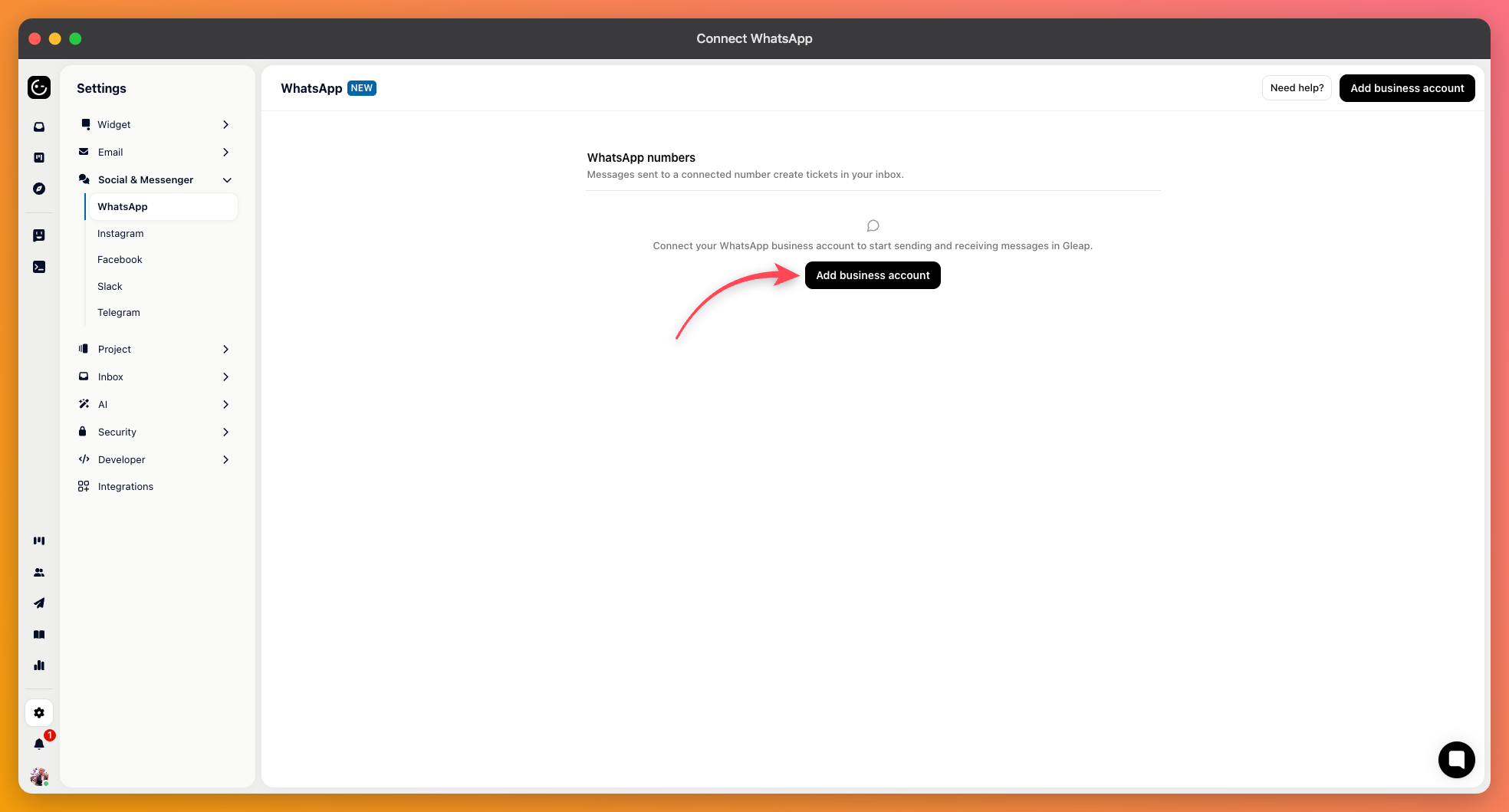
In your project's channel settings, add WhatsApp and connect your WhatsApp Business Account. Then register the phone number:
Enter the number and choose how Meta should send the verification code — by SMS or by voice call.
Enter the code you receive to verify it.
If Meta asks for the number's two-step verification PIN, enter the existing one. Gleap never creates or stores that PIN — it belongs to your WhatsApp Business Account, so you'll need whoever set it up to supply it.

For a landline, choose the voice option. The code is read out, so have someone at the phone when you request it.
The channel settings show a QR code you can scan to open a chat with your number. Send a message from your own phone and check it arrives as a ticket, then reply from Gleap and confirm it comes back.
Do the round trip rather than just the inbound half. Inbound messages usually work as soon as the connection is made; sending is where Meta's rules start to apply.
The connection can show that it needs attention, which usually means something changed on Meta's side — a verification that lapsed, a policy step outstanding, a payment method missing on the business account.
Deal with it when it appears. WhatsApp tends to fail silently from a customer's point of view: they message you, nothing arrives, and they conclude you don't answer.
Two things are worth setting up first. Meta only lets you message someone freely for a limited time after they write, so plan for message templates if you need to start conversations or follow up later. And decide whether Kai answers on WhatsApp — it's not automatic, and the workflow has to have the channel switched on.