Kai Resolve is Gleap's deep-analysis AI agent. While Kai answers most questions instantly from your knowledge base, some conversations need more: a tricky technical issue, a question that spans multiple systems, or a problem that requires real investigation. That's where Kai Resolve steps in.
Instead of escalating every hard conversation straight to your team, Kai can hand it to Kai Resolve first. Kai Resolve digs into the conversation, investigates the issue in depth, and works toward a resolution on its own. Only if it can't resolve the issue does the conversation move on to your human support team.
A second line of AI support. Kai stays your fast frontline answer bot. Kai Resolve is the specialist behind it that takes over when a quick answer isn't enough.
Deep investigation. Kai Resolve analyzes the full conversation and your connected knowledge to understand the actual problem, not just match an article.
Its own identity in the widget. Kai Resolve replies under its own name and avatar (for example "Technical analyst"), so customers see that a specialist has taken over. A visible handoff message is always posted, and all replies are clearly marked as AI.
A built-in safety net. Customers can always reach your human team. If a customer explicitly asks for a human, the conversation goes to your team, never to Kai Resolve. And Kai Resolve gets exactly one attempt per conversation: if it can't resolve the issue, the conversation is handed to your support team.
There are three ways a conversation can be passed to Kai Resolve, all configured in your workflow:
Automatically. When Kai can't find a useful answer (no answer, a knowledge gap, or a clearly unhappy customer), it hands the conversation to Kai Resolve.
With confirmation. Kai first asks the customer, for example "Would you like me to pass this to our technical analyst?". Only if the customer confirms does Kai Resolve take over.
Via a button. Customers see a dedicated button in the widget (for example "Talk to our technical analyst") next to the regular "Talk to our support team" button, and choose the analyst themselves.
The easiest way to get started is the guided setup. In your Gleap dashboard, go to AI & Automation > Agents in the left sidebar and select Kai Resolve. The setup walks you through:
Meet Kai Resolve - a quick overview of what the agent does.
Knowledge - connect the sources Kai Resolve learns from: your help center articles, crawled websites, and other knowledge sources.
How it works - choose how conversations should reach Kai Resolve (automatically, ask first, or button only) and preview exactly how it will look in your widget.
Go live - finish the setup. Gleap adds the Kai Resolve capability to all your workflows that use the "Let Kai answer" step.
To find the agent settings, go to AI & Automation > Agents, open Kai Resolve, and switch to the Settings tab. Here you can adjust:
Name and avatar. Rename the agent (for example "Technical analyst" or a name that fits your brand) and give it its own avatar, color, and icon. This identity is what customers see in the widget: in the chat header, in the typing indicator, and on every reply. Note: the AI label on replies always stays visible; the name is yours to choose, the AI disclosure is not.
Custom instructions. Add your own instructions on top of Kai Resolve's built-in prompt: your tone of voice, product-specific guidance, things it should always or never do. Use View base prompt to see the built-in instructions your additions are combined with.
Response delay. Optionally add a small randomized delay before Kai Resolve replies, so responses feel more natural.
Everything else about the agent is managed by Gleap and kept up to date automatically, so Kai Resolve keeps improving without any maintenance on your side.
Kai Resolve is connected to your bot through a Pass to Kai Resolve capability inside the "Let Kai answer" workflow step. To find it:
Go to AI & Automation > Workflows in the left sidebar.
Open the workflow that answers your customer conversations (for example your "Conversation started" workflow).
Click the Let Kai answer action in the workflow canvas.
Scroll to the Tasks & capabilities section and click the Pass to Kai Resolve capability to open its settings.
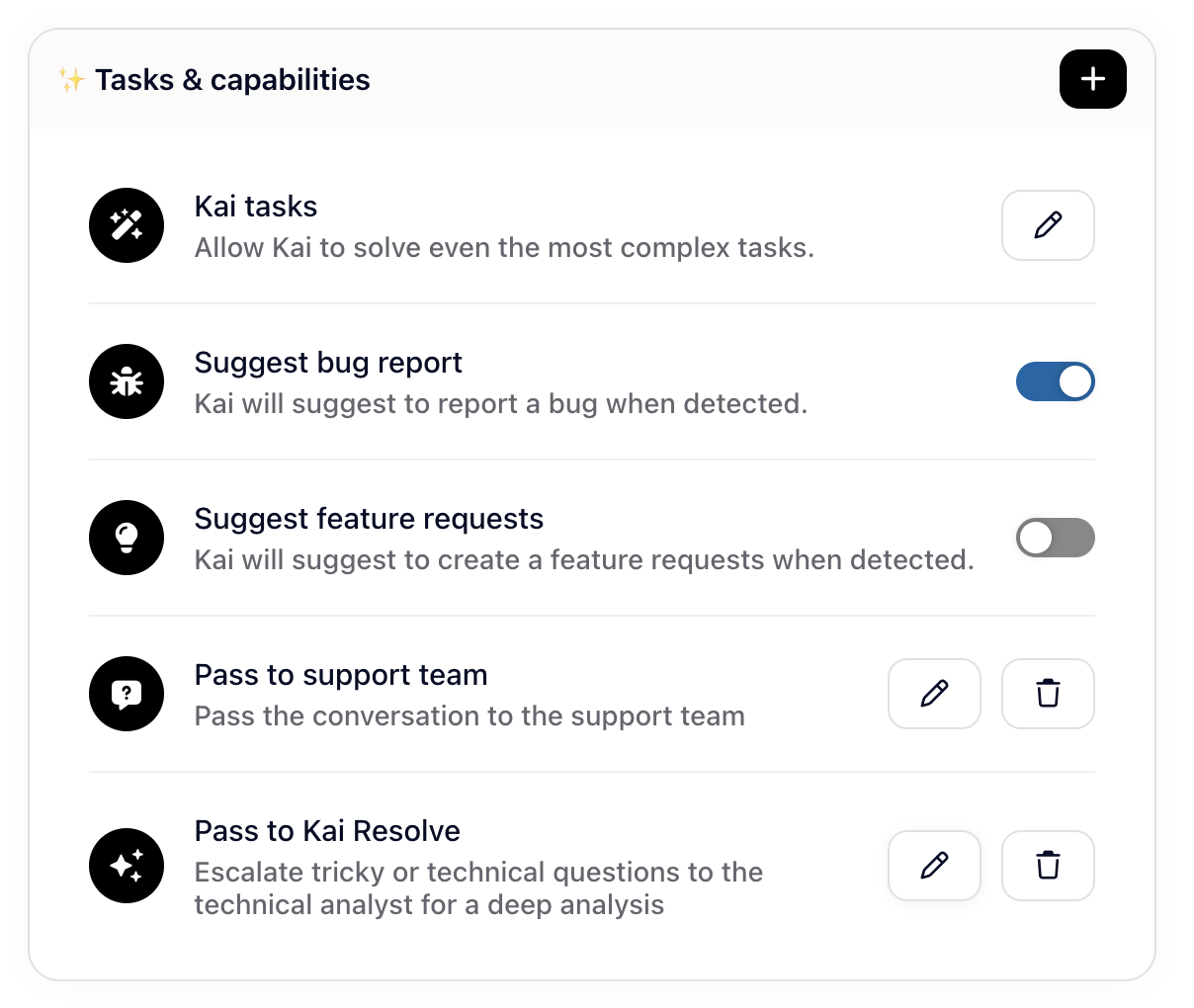
If you used the guided setup, this capability was added to all your workflows with a "Let Kai answer" step automatically.
If you don’t have the “Pass to Kai Resolve” capability yet just click on the “+” icon in the capability section, edit the newly created capability and switch the action to “Pass conversation to Kai Resolve”.
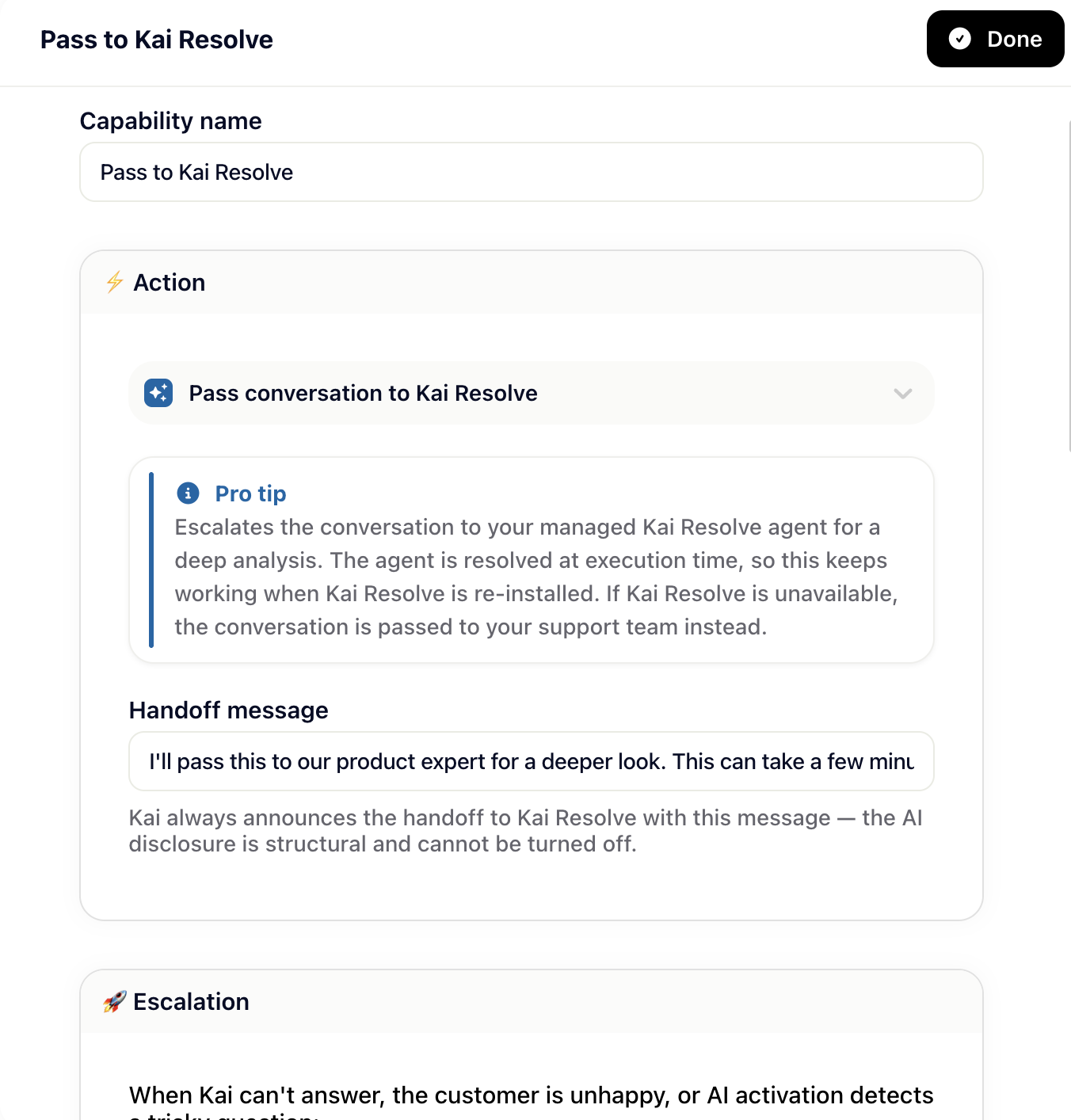
In the capability settings you can configure:
Controls everything Kai starts on its own:
Automatic. Kai hands conversations to Kai Resolve as soon as it can't help: no answer found, a knowledge base gap, or a dissatisfied customer.
Ask first. Kai posts its answer, then offers the handoff once per conversation with a quick reply the customer can tap to confirm.
Never. Kai never escalates on its own. Kai Resolve is only reachable through the button, if you show one.
Show button - whether customers see a dedicated Kai Resolve button in the widget.
Button text - the label, for example "Talk to our technical analyst".
Show after responses - only show the button after a number of bot responses.
Show only when no answer was found / always show when no answer was found - tie the button's visibility to whether Kai actually struggled, so the analyst is offered exactly when it's needed.
Give Kai itself the ability to decide when a question calls for the analyst. Write an activation phrase describing when to escalate (for example "technical issues, bug reports, or questions that need investigation"), and Kai will pass matching conversations to Kai Resolve mid-conversation, following your escalation mode.
The forwarding text is the message customers see when the conversation is passed over, for example "I'm passing this to our technical analyst for a deeper look." You can fully customize the wording. A handoff message is always shown, so customers always know an AI analyst has taken over.
Humans always win. If a customer asks for a human, or repeatedly requests one, the conversation goes to your support team. Kai Resolve is never forced on anyone.
One attempt per conversation. Once Kai Resolve has engaged and couldn't resolve the issue, it won't be offered again on that conversation. The next stop is always your team.
The support team button stays. The Kai Resolve button is additive. Customers keep their direct path to your human team at all times.
Reporting. Kai Resolve engagements are tracked, so you can see how many conversations were requested by customers and how many were escalated automatically.