Open AI & Automation > Agents and select Kai Resolve. The first time, a guided setup opens. Everything it sets is a normal setting you can change later on the agent's Settings tab.
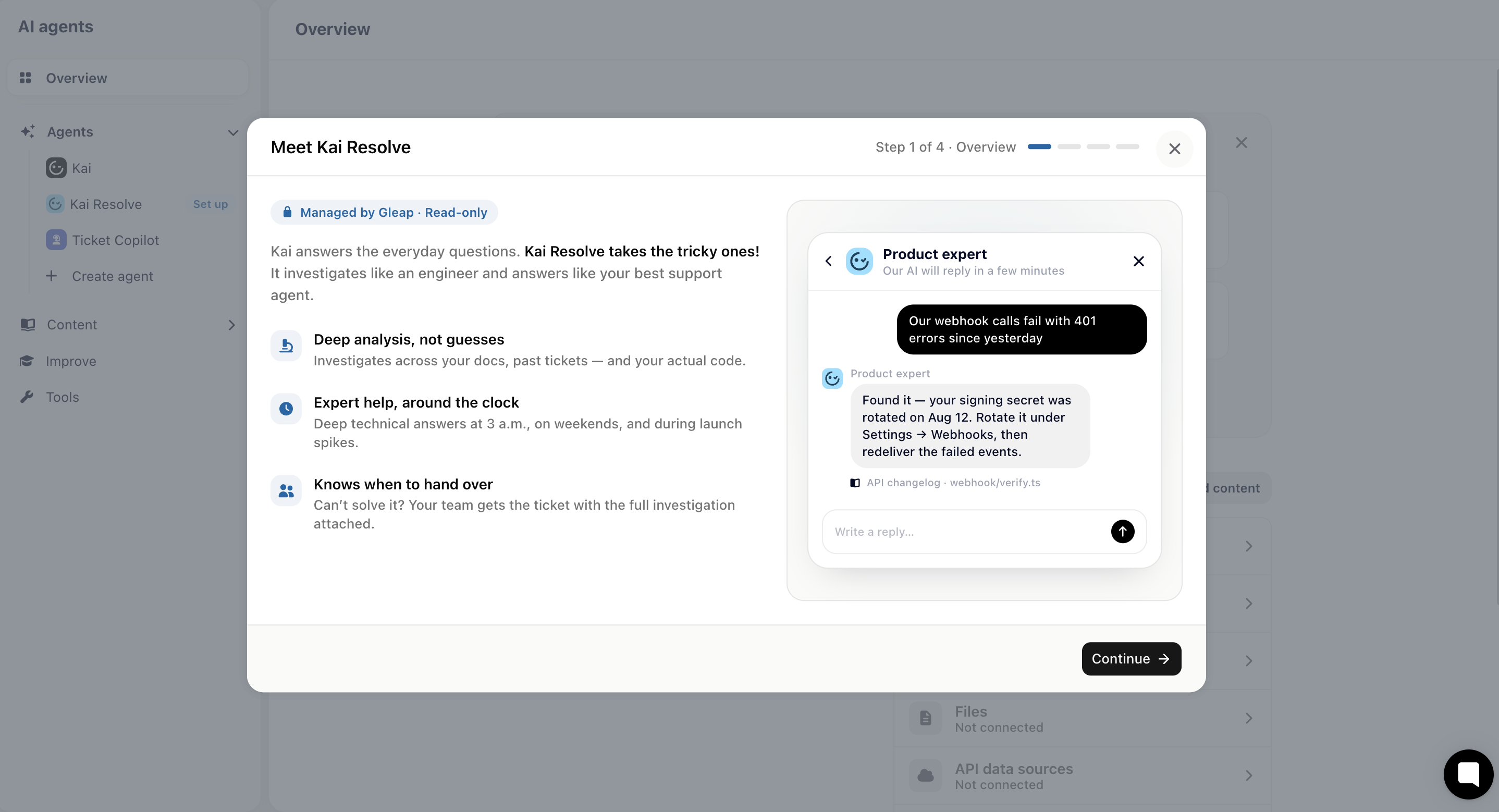
Meet Kai Resolve. What the agent does.
Give Kai Resolve its knowledge. Connect what it can read: your help center, a website crawl, and code repositories. More sources means better investigations.
See how it works. Pick how customers reach it. The preview on the right shows exactly what the messenger will do.
Ready to go live. Name the agent as customers will see it, check the summary, and finish. Your existing workflows are listed here and stay untouched.
The presets are bundles of the four triggers. Picking one writes settings, nothing else.
Preset | When Kai can't answer | Second level for human requests | Widget button | Bug analysis |
Full second level (recommended) | on | on | on | on |
Safety net only | on | off | off | off |
Manual only | off | off | off | off |
Full second level makes Kai Resolve the layer between Kai and your team for everything. Safety net only is invisible: only questions Kai can't answer are escalated, and requests for a person go straight to your team. Manual only installs the agent so your team can pass tickets to it from the dashboard, with nothing automatic.
On the Settings tab of the agent:
Inquiry escalation
When Kai can't answer. Kai passes the conversation to Kai Resolve when it can't resolve the question itself. With it on, a second row appears: Ask the customer first, which makes Kai offer the handover and wait for a yes instead of engaging on its own.
Kai Resolve as second level of support. Conversations that would otherwise go from Kai to the inbox, including requests for a person, go to Kai Resolve first. With it on, a Handoff message field appears: the sentence customers see when the conversation is passed on. It's prefilled with the default and each language can have its own text.
Widget button. Adds the standing "Talk to our technical analyst" button and replaces the support-team button while active. With it on, a Button label field appears, per language. Leave it empty to keep the default, which already uses the agent's name.
Bug reports
Analyze bug reports first. New widget bug reports are held while Kai Resolve investigates, then handed to your team with the findings attached.
The status line at the top of the page tells you what the current combination does: live on how many answer workflows, on but idle because no live messenger workflow has a Let Kai answer step, analyzing bug reports only, or off because no trigger is on.
The rest of the tab is the agent itself: its name and avatar, custom instructions on top of the built-in prompt, code investigation, and an optional response delay.
The project setting is the default for every Let Kai answer step on the messenger. A single workflow can differ.
Open the workflow, select its Let Kai answer step. The step shows a "Then: Kai Resolve takes over" strip with a Project settings chip. Click Use custom settings to configure Kai Resolve for this step alone: its own escalation mode (automatic, ask first, or never), button, activation phrase and handoff text. The chip changes to Custom settings, and Back to project settings removes them again.
Custom settings always win over the project setting, including turning Kai Resolve off for that one flow with escalation mode Never. The agent's settings page lists workflows that keep running Kai Resolve through custom settings even when every project-wide trigger is off.
Open your own messenger and ask something your content can't answer. Kai should hand over with the handoff message, and the reply should come from Kai Resolve under its name with the AI label. Then ask for a person: with the second-level trigger on, Kai Resolve answers first; with it off, the conversation appears in your inbox.