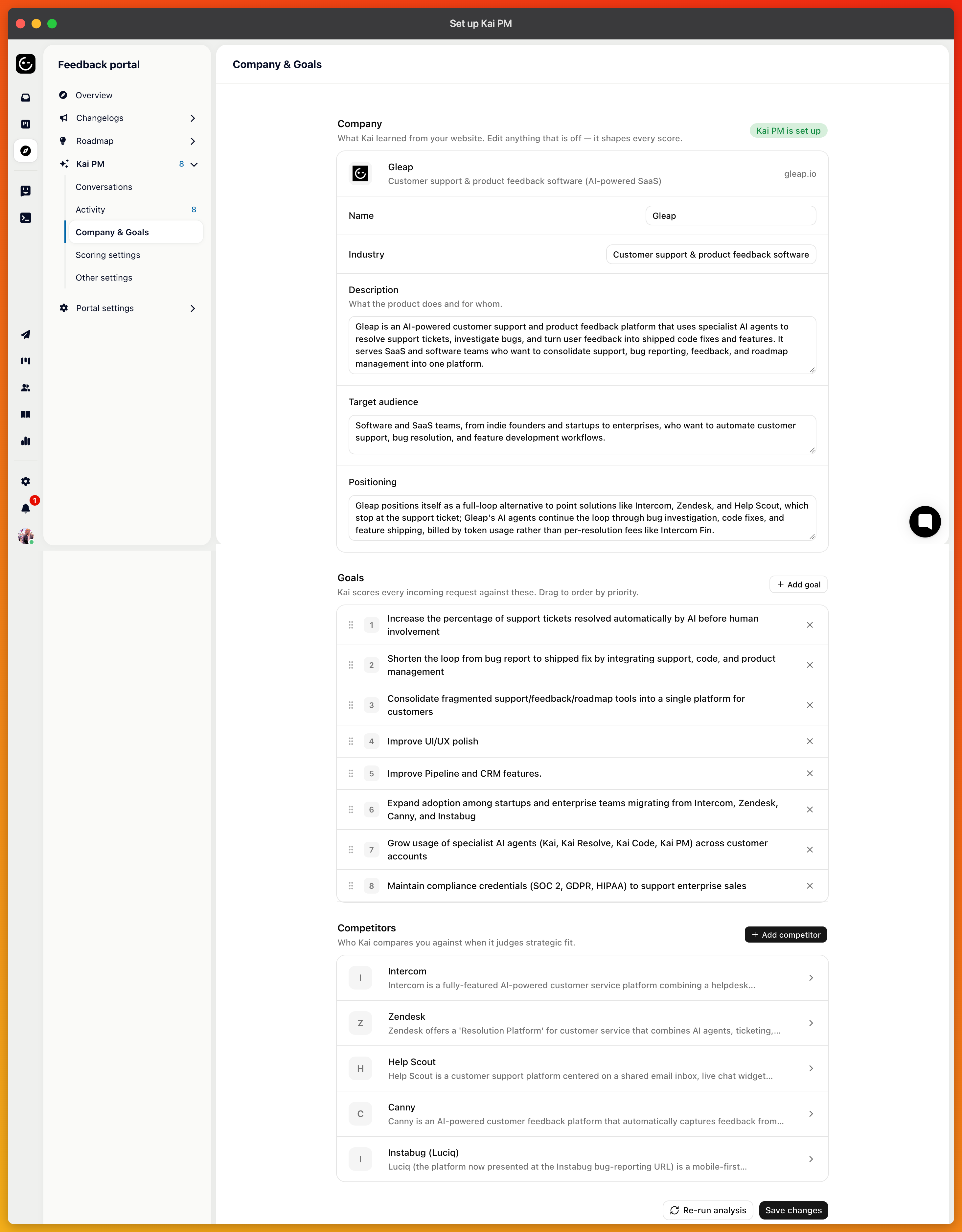
Kai PM needs to know what your company is trying to do before it can tell a strategic request from a distraction. Setup is four steps and takes about five minutes; most of it is Kai analysing your website and you correcting it.
You find it under Feedback portal → Kai PM → Company profile.
Enter your website and choose Analyze my product. Kai reads the site and drafts a company profile: name, industry, a description, your positioning, your target audience, a set of goals, and the competitors it found.
Review every line. The goals matter most: they're what Kai measures each request against when it scores strategic alignment. Remove goals that aren't yours, add the ones the website doesn't say out loud, and add or remove competitors by URL. Re-run analysis starts over from the website if you'd rather.
You can edit all of this later on the same page. Changing goals changes how new requests are scored; existing scores update on the next re-score.
A short explanation of the four sources that feed one score: upvotes, tracked revenue, your goals, and, if a repository is connected, your code. Nothing to configure here; it also shows whether a code repository is connected and offers to connect one.
Kai can weigh requests by the monthly revenue of the accounts asking for them. That needs one field: pass the account's MRR as value in your Gleap.identify call. The step shows the snippet and a before-and-after example of how a request from a paying account moves up.
The toggle here switches the revenue factor on or off. Leave it on even if you haven't sent values yet; requests without revenue data are scored on the other factors.
If you already have more than a few open requests, this step lets you score one live so you can see the factors and reasons Kai produces before you commit. It also offers the Ask for more context toggle, described in What Kai does when a request arrives.
Finishing setup scores your existing backlog. On very large boards, Kai scores the 500 most upvoted requests first; it picks up the rest over time.
The setup screen has a link for admins: Use the roadmap without AI? Choosing it gives you the same overview and review queue with no scores, no intake automations, and no chat. Requests sort by newest instead of score. You can complete the setup later, and everything switches on.
Two permissions control Kai PM. Use grants the overview actions, the chat, and the Activity page. Settings grants the company profile and the settings pages. Admins and managers have both by default; agents have neither. Custom roles get them under Roles and permissions.
The chat additionally needs the Pro plan. Scoring and the overview don't.
Two settings pages sit next to the company profile. Scoring settings hold the score formula, covered in How Kai scores a feature request. Other settings hold the intake and triage automations and the reply templates, covered in the next articles.