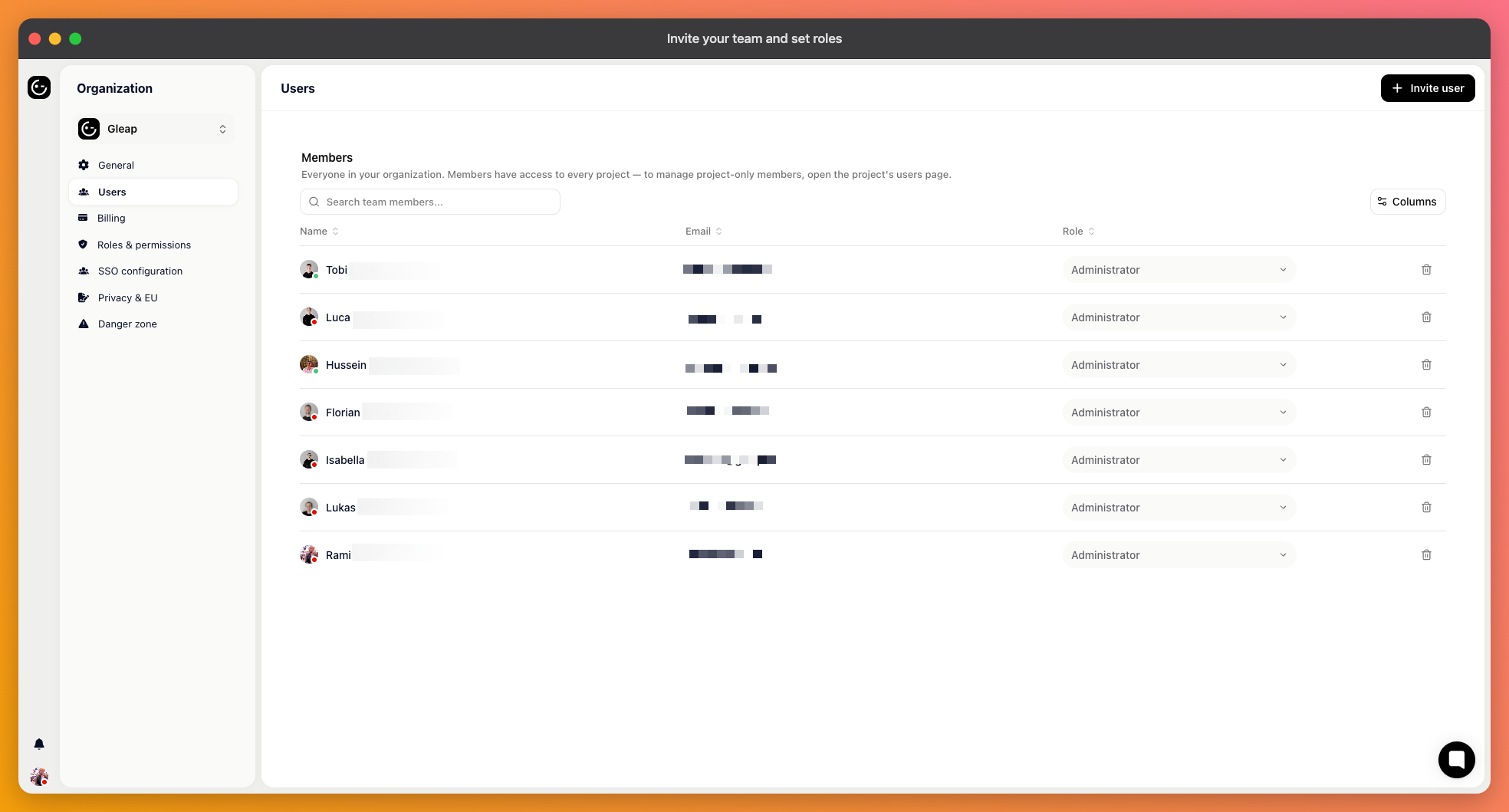
Gleap has two levels of membership. Organisation members can access every project. Project members reach only the project they were added to. Invite people at the level that matches how they work — someone who answers conversations for one product doesn't need the others.
For organisation-wide access, open your organisation settings and go to Users. For a single project, open the project and go to Project users. Enter up to four email addresses and send the invitation. Each person gets an email and appears in the list once they accept.
Inviting at organisation level requires the Administrator role. Managers can add people to a project but not to the organisation.

Administrator and Manager are nearly identical. Agent is the genuinely restricted one.
Administrator — everything. Two things are reserved for this role alone: managing the organisation itself (billing, plan, members, roles) and automatic access to every board, including private ones.
Manager — everything an administrator can do inside a project: settings, workflows, AI agents, the help center, reports, outbound messages, surveys, Kai Code and team management. Only the two administrator-reserved areas above are out of reach.
Agent — the day-to-day support role: the inbox, boards, contacts, Copilot, running existing workflows, using AI agents, applying tags, and editing or deleting their own comments.
An agent cannot open project settings, reports, or the help center editor, cannot invite people, and cannot send outbound messages, run surveys, or publish news. They also cannot start Kai Code sessions, edit message templates, create tags, or delete a teammate's comment.
To change a role, open the user list and pick a different one on that person's row.

When none of the three fit, build your own. Under Roles & permissions in your organisation settings, you can create a role and choose exactly which permissions it carries — conversations, boards, contacts, AI agents, the help center, outbound, reports and settings are all separate. Assign a custom role the same way you assign a built-in one.
This is worth doing when someone needs a narrow slice of manager rights: a person who maintains help center articles but has no reason to see conversations, for example.
Roles decide what a person may do. Teams decide who gets the work. If you plan to route conversations by topic — billing to one group, technical questions to another — set up teams once the people are in place.
Each teammate's profile supplies their name, photo, and job title. That's what customers see on replies, and what email signatures are built from. Empty profiles produce replies that look anonymous.