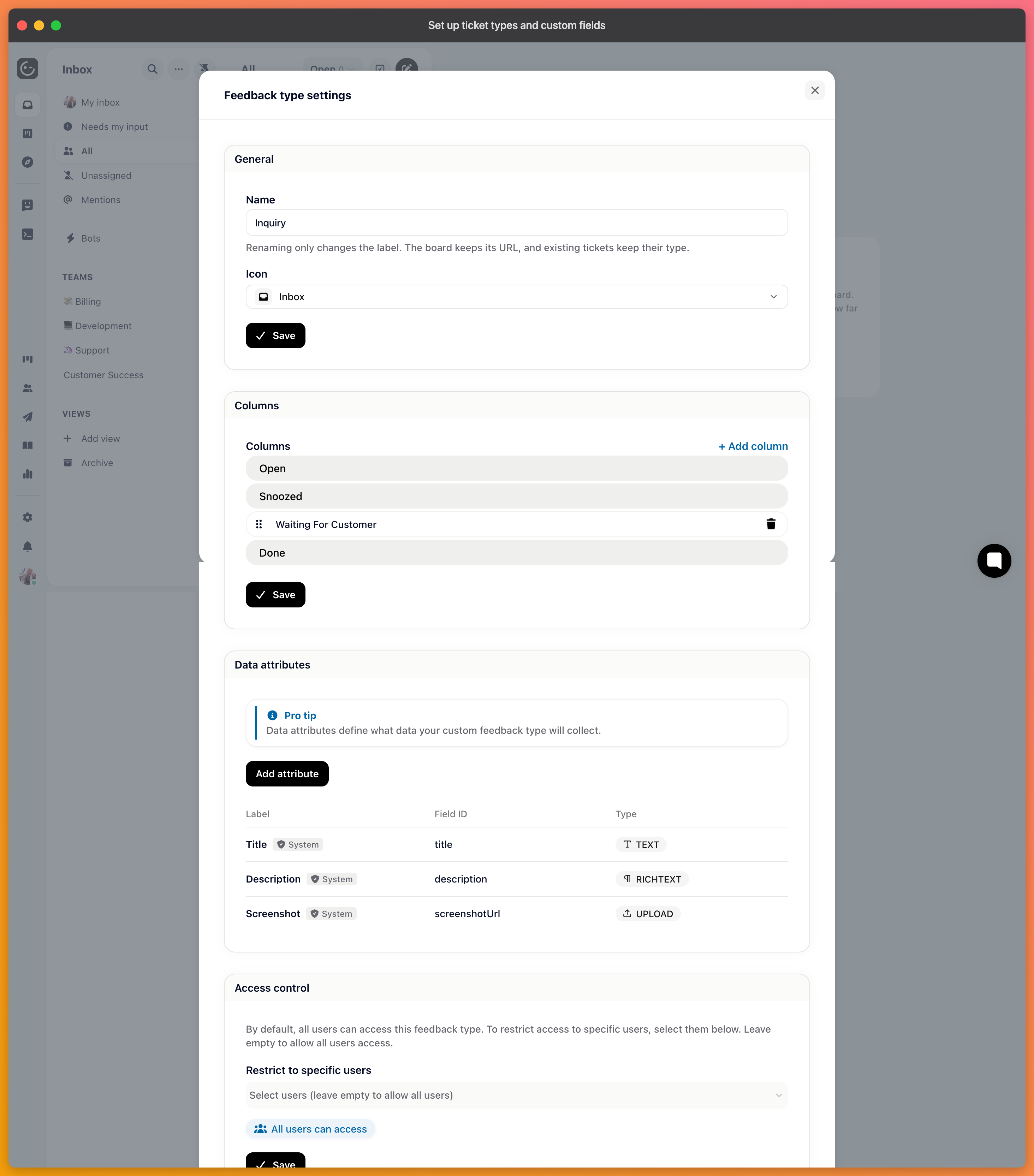
The three types you start with cover most work, but a process that has its own shape usually deserves its own type — onboarding requests, security reviews, returns. Every type you add is a board, with its own columns and its own fields.
Inquiry, where your email, chat and messaging conversations arrive, is shown as the Inbox. Its views are lists: statuses such as Open, Snoozed and Done are filters you switch between, not columns you drag conversations across. To change a conversation's status, open it and pick the status under Details → Status.
Bug, feature requests and every type you add are boards with columns. On a board, each view has a Layout setting, so the same tickets can be shown as columns or as a list.
Click Add board at the bottom of the board list in the inbox sidebar, or Create new ticket type on the Ticket types page in your project settings. All you enter is a name. Gleap creates a board with a default icon and the columns Open, In progress, To test and Done; you can change the name, the icon and the columns afterwards in the board's settings.
There is no option to create a type that's displayed as an Inbox, and a type's display can't be switched later. So decide whether the work belongs on a board before you add one: a board suits anything handed between people and moved through stages, while conversations that are answered once belong in the Inbox.

Each type carries its own columns, and you name them for your process rather than accepting the defaults. The Open and Done columns are fixed, but the ones between them are yours — a returns board might run Received, Inspecting, Refunded, and Rejected.

Custom fields capture what your process needs beyond the conversation — an order number, an affected environment, a severity. Each has a type, which decides what can be entered and how it behaves in filters and automations.
Prefer a constrained type over free text wherever the answer is known. A select field with four options can be filtered, counted, and routed on; the same thing as text gives you four spellings within a month.
A field can be shown when a ticket is created, in the ticket detail, or in the sidebar — and there are shared variants for fields that should appear on the detail or sidebar across types.
This is worth more thought than it sounds. A field on the creation form is one more thing between a customer and telling you their problem, so put it there only when you genuinely can't proceed without it. Everything else belongs in the sidebar, filled in by your team.
Fields accumulate. Each one is something to fill in, something that goes stale when nobody does, and something that makes the sidebar harder to read.
A good test before adding one: what decision does this change? A field that routes a ticket, sets a priority, or answers a question your team would otherwise have to ask earns its place. One that exists so the data is there "in case we need it" usually ends up half-filled and untrustworthy.